Monday, January 30, 2017

Simple Addition/Substration/Multiplication/Division Example using AngularJS2

Tool Used:-
Eclipse with AngularJS2 plugin
Chrome Browser
AngularJS2 is Typescript language i.e. developer write the code in Typescript language and at run time it get converted into JAVA script to display result on screen.
Here we are trying to create a simple angularJS2 example that shows us add,sub,multiplication and division.
We are using Routing concept as we have created 4 tab one for each operation
Step 1:- Create AngularJS2 Project with name i.e. AddSunDivMultiProject
Step 2:- Execute above created project i.e. right click on project --> Run as --> ng serve
open this url on browser http://localhost:4200
This will show defualt project screen on the browser.
Step 3:- Now create a new component for Add functionality i.e. right click on project --> new -> other --> AngularJS2--> Component
image2
This will create folder with our name provided by us along with three files
1- *.ts :- Code to have logic
2- *.html :- Code to display the page
3- *.css :- To give look and feel to our html files.
Folder Structure
image1
Files
1:- add-component.component.ts
import { Component, OnInit } from '@angular/core';
//import { NumberEnter } from './number-enter';
@Component({
selector: 'app-add-component',
templateUrl: './add-component.component.html',
styleUrls: ['./add-component.component.css']
})
export class AddComponentComponent implements OnInit {

answer : number;
constructor() { }
ngOnInit() {
}

addNumber(firstnumber, secondnumber) {
console.log(firstnumber)
console.log(secondnumber)
var myFirstNumber = +firstnumber
var mySecondNumner = +secondnumber
this.answer = myFirstNumber + mySecondNumner;
console.log(this.answer)

}
getAnswer()
{
return this.answer;
}

}
2- add-component.component.html
<!--div>
<!--h2>Add Number Screen!<!--/h2>
<!--div>
<!--label>firstnumber: <!--/label> <!--input
[(ngModel)]="firstnumber" placeholder="firstnumber" />
<!--/div>
<!--div>
<!--label>secondnumber: <!--/label> <!--input [(ngModel)]="secondnumber"
placeholder="secondnumber" />
<!--/div>
<!--button (click)="addNumber(firstnumber, secondnumber)">Add Number<!--/button>
<!--div>
<!--label>Answer: <!--/label>
<!--input type="text" value='{{ getAnswer() }}' />
<!--/div>
<!--/div>
Imply the same logic expect the operator in all other sub,div and multilication fies.
3- app-routing.module.ts
import { NgModule } from '@angular/core';
import { RouterModule, Routes } from '@angular/router';
import { AddComponentComponent } from './add-component/add-component.component';
import { SubComponentComponent } from './sub-component/sub-component.component';
import { DivComponentComponent } from './div-component/div-component.component';
import { MultiComponentComponent } from './multi-component/multi-component.component';
const routes: Routes = [
{ path: '', redirectTo: '/addcomponent', pathMatch: 'full' },
{ path: 'addcomponent', component: AddComponentComponent },
{ path: 'subcomponent', component: SubComponentComponent },
{ path: 'divcomponent', component: DivComponentComponent },
{ path: 'multicomponent', component: MultiComponentComponent }
];
@NgModule({
imports: [ RouterModule.forRoot(routes) ],
exports: [ RouterModule ]
})
export class AppRoutingModule {}

5 :- app.module.ts
import { BrowserModule } from '@angular/platform-browser';
import { NgModule } from '@angular/core';
import { FormsModule } from '@angular/forms';
import { HttpModule } from '@angular/http';
import { AppComponent } from './app.component';
import { AppRoutingModule } from './app-routing.module';
import { AddComponentComponent } from './add-component/add-component.component';
import { SubComponentComponent } from './sub-component/sub-component.component';
import { DivComponentComponent } from './div-component/div-component.component';
import { MultiComponentComponent } from './multi-component/multi-component.component';

@NgModule({
declarations: [
AppComponent,
AddComponentComponent,
SubComponentComponent,
DivComponentComponent,
MultiComponentComponent
],
imports: [
BrowserModule,
FormsModule,
HttpModule,
AppRoutingModule
],

providers: [],
bootstrap: [AppComponent]
})
export class AppModule { }

6:- app.component.html
<!--h1>{{title}}<!--/h1>
<!--nav>
<!--a routerLink="/addcomponent" routerLinkActive="active">Addition<!--/a>
<!--a routerLink="/subcomponent" routerLinkActive="active">Subtraction<!--/a>
<!--a routerLink="/multicomponent" routerLinkActive="active">Multiplication<!--/a>
<!--a routerLink="/divcomponent" routerLinkActive="active">Division<!--/a>
<!--/nav>
<!--router-outlet><!--/router-outlet>

7:- app.component.css
h1 {
font-size: 1.2em;
color: #999;
margin-bottom: 0;
}
h2 {
font-size: 2em;
margin-top: 0;
padding-top: 0;
}
nav a {
padding: 5px 10px;
text-decoration: none;
margin-top: 10px;
display: inline-block;
background-color: #eee;
border-radius: 4px;
}
nav a:visited, a:link {
color: #607D8B;
}
nav a:hover {
color: #039be5;
background-color: #CFD8DC;
}
nav a.active {
color: #039be5;
}
Run application right click on project --> run as --> ng serve
image3image4image5image6

Sunday, January 22, 2017

How to run/deploy your AngularJS2 application on Tomcat

Run following commnd on prompt inside your AngularJS2 project
npm build
This will create dist folder inside your AngularJS2 project.
Finally Edited index.html as and it worked fine

Running through Eclipse AngularJS2 plugin

Right Click Project --> Run As --> ng Server

Monday, January 16, 2017

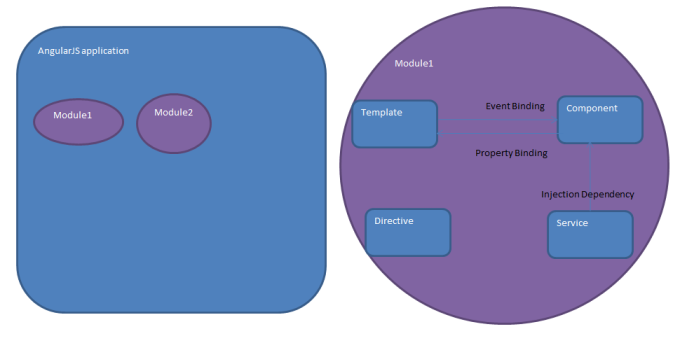
AngularJS2 Architecture

image1
1- Modules: - AngulasJS2 App is collection of modules. Each module define/contains code to perform single task.It contain export class stating that this class is public and can be access by other modules in applications.
2- Components:- It is controller class with a view template that deals with view of application and logic on the page.
3- Template:- This define the view part of our AngularJS2 application
4- MetaData :- It is data inside data. If we refer to our component we use metadata to tell angularjs2 to create a component using decorator i.e. @Component is decorator.
@Component({
selector : 'mySelector',
template : '

Siddhartha dhumale

'
directives : [MyComponentDetails]
})
export class MySiddhuClass{...}
@Component is a decorator which uses Metadata to create the component and its view.
selector :- create instance of component,
template:- tells Angular what to display on the screen using tag and
directive:- represent array of components and directive.
5- Data Binding:- It binds data and view and viceversa
Interpolation: It displays the component value within the div tags.
Property Binding: It passes the property from the parent to property of the child. From Component to Template.
Event Binding: handle click event on the screen.
Two-way Binding: binding two way between template and component.
6- Service
Services are JavaScript functions use to do a specific task only. In AngularJS2 services are injected using Dependency Injection mechanism. Service example are loggin service, data service etc.
7- Directive
The directive is a class that represents the metadata. It is of three type:-
Component Directive: It creates custom controller by using view and controller.
Decorator Directive: This directive use decorator to decorates elements by giving them additional behavior.
Template Directive: It converts HTML into a reusable template.

Sunday, January 15, 2017

REST Assured API for Testing and Parsing REST JSON RESPONSE big file

Generally we use to Use JERSY in java to perform JSON REST call and then using traditional way we use to parse the output to get desired result.
Rest assured is best API available in its kind to do the same. It support all REST operation like GET/PUT/POST etc.
http://rest-assured.io/
Best use of rest assured is its well tested API to parse JSON response and get desired value.
Please find below given POC for the same
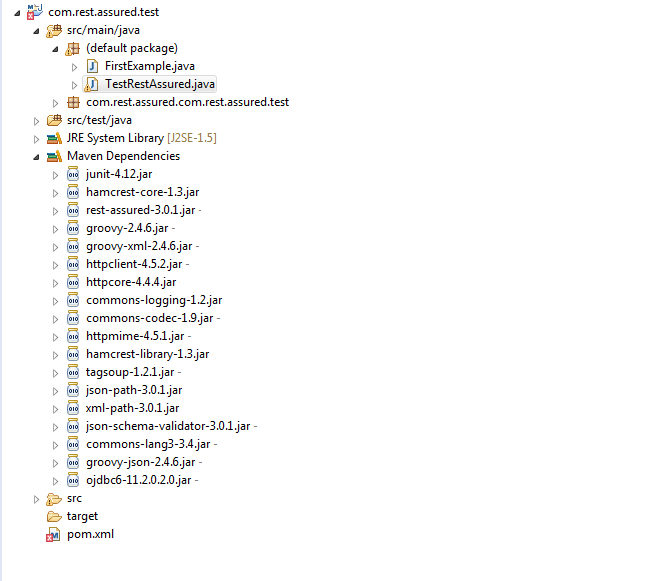
1- POM.xml
<!--project xmlns="http://maven.apache.org/POM/4.0.0" xmlns:xsi="http://www.w3.org/2001/XMLSchema-instance"
xsi:schemaLocation="http://maven.apache.org/POM/4.0.0 http://maven.apache.org/xsd/maven-4.0.0.xsd">
<!--modelVersion>4.0.0<!--/modelVersion>

<!--groupId>com.rest.assured<!--/groupId>
<!--artifactId>com.rest.assured.test<!--/artifactId>
<!--version>0.0.1-SNAPSHOT<!--/version>
<!--packaging>jar<!--/packaging>

<!--name>com.rest.assured.test<!--/name>
<!--url>http://maven.apache.org<!--/url>

<!--properties>
<!--project.build.sourceEncoding>UTF-8<!--/project.build.sourceEncoding>
<!--/properties>

<!--dependencies>
<!--dependency>
<!--groupId>junit<!--/groupId>
<!--artifactId>junit<!--/artifactId>
<!--version>4.12<!--/version>
<!--scope>test<!--/scope>
<!--/dependency>
<!--dependency>
<!--groupId>io.rest-assured<!--/groupId>
<!--artifactId>rest-assured<!--/artifactId>
<!--version>3.0.1<!--/version>
<!--scope>test<!--/scope>
<!--/dependency>
<!--dependency>
<!--groupId>io.rest-assured<!--/groupId>
<!--artifactId>json-path<!--/artifactId>
<!--version>3.0.1<!--/version>
<!--/dependency>
<!--dependency>
<!--groupId>io.rest-assured<!--/groupId>
<!--artifactId>xml-path<!--/artifactId>
<!--version>3.0.1<!--/version>
<!--/dependency>
<!--dependency>
<!--groupId>io.rest-assured<!--/groupId>
<!--artifactId>json-schema-validator<!--/artifactId>
<!--version>3.0.1<!--/version>
<!--scope>test<!--/scope>
<!--/dependency>

<!--dependency>
<!--groupId>org.apache.commons<!--/groupId>
<!--artifactId>commons-lang3<!--/artifactId>
<!--version>3.4<!--/version>
<!--/dependency>

<!--dependency>
<!--groupId>org.codehaus.groovy<!--/groupId>
<!--artifactId>groovy-json<!--/artifactId>
<!--version>2.4.6<!--/version>
<!--/dependency>
<!--dependency>
<!--groupId>com.oracle<!--/groupId>
<!--artifactId>ojdbc6<!--/artifactId>
<!--version>11.2.0.2.0<!--/version>
<!--/dependency>

<!--/dependencies>
<!--/project>
2- TestRestAssured
import static io.restassured.RestAssured.given;
import io.restassured.path.json.JsonPath;
import io.restassured.response.Response;
import io.restassured.response.ValidatableResponse;
import org.junit.Test;
public class TestRestAssured {
@Test
public void makeSureThatGoogleIsUp() {
//given().when().get("http://services.groupkt.com/country/get/iso2code/IN").then().statusCode(200);


/*
* //To check if result value in array is India
//given().when().get("http://services.groupkt.com/country/get/iso2code/IN").then().statusCode(200).body("RestResponse.result.name", equalTo("India"));
*/
//ValidatableResponse objValidatableResponse = given().when().get("http://services.groupkt.com/country/get/iso2code/IN").then().statusCode(200);
/*
* //To check response contain perticular string
Response response = given().when().get("http://services.groupkt.com/country/get/iso2code/IN");
JsonPath jsonPath = new JsonPath(response.getBody().asString());
String user_id = jsonPath.getString("RestResponse.result.name");
*/
/*
* //To check if response is 200
Response response = given().when().get("http://services.groupkt.com/country/get/iso2code/IN");
Long statusCode = new Long(response.statusCode());
Long id = null;
if(statusCode.toString().equals("200")){
System.out.println("This is test");
//make a db call
}*/
}
}
image1
For Reference
http://testdetective.com/rest-assured-framework-overview/
https://semaphoreci.com/community/tutorials/testing-rest-endpoints-using-rest-assured
https://github.com/rest-assured/rest-assured/wiki/GettingStarted
https://github.com/rest-assured/rest-assured/wiki/GettingStarted#jsonpath
https://github.com/rest-assured/rest-assured/wiki/Usage
https://github.com/rest-assured/rest-assured/wiki/Downloads
http://james-willett.com/2015/06/extracting-a-json-response-with-rest-assured/

Wednesday, January 11, 2017

AngularJS2 Introduction with Simple Programe


AngularJS2 is open source MIT License (Free to use software). AngularJS2 come with reach developmenmt expertise from AngularJS1.
AngularJS2 programing pragadigm change from JAVA Scripting to Type Scripting along with Component Base Architecture. (i.e. Component is base of application and is responisible for Viewing and Modeling activities).
AngularJS2 comes with many in build advantages
1- It support Dependency Injection. Inshort hurry for developer as less number of code need to be written.
2- It is build with mobile first view i.e. Sites developed by AngularJS2 is highly Responsive in nature.
3- It support all browser
4- It is best suited for the application which required heavy load.
5- It support server side rendering.
6- It support cross browser scripting (remember access controll allow error)
7- It support component base architecture.
Lets see how AngularJs2 differe from AngularJS1.
AngularJS1 is build on JAVA Script and has brief separation of MVC architecture with concept like ng-app, controller, model, module, binding, Directive, Expression, From, Filter, Routing, http, Service, Scopr, Animation concept. But programing remain with JAVA script epicenter.

In AngularJS2 pragraming is shifted to TypeScript. Type script is superset of JAVA Script.
Lets see how exellent way is used to seperate configuration and application logic and execution in AngularJS2.
But before starting AngularJS2 programing make sure you have NodeJS installted, NPM installed in your PC.
AngularJS2 development strategies is broadly classfied in three different aspect
1- Creating:- Configuration JSON files.
2- Creating Base for angularjs2 project using NPM install command using above JSON files
3- Creating *.ts (Type Script) files which create and execute our AngularJS2 Project

Lets see one by one

Step 1:- Create folder in your PC i.e. C:\angularjs2_example
1- Creating:- Configuration JSON files.
Three JSON files are required
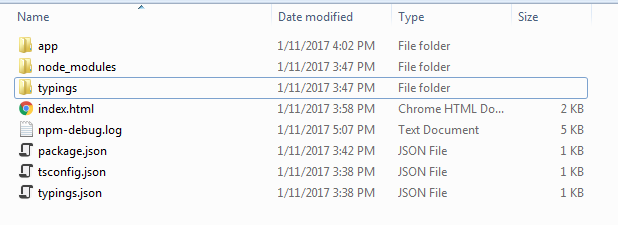
1- tsconfig.JSON files :- This is Type script compiler configuration files
2- typing.json :- This indicate which typing languages are using in the applications
3- package.json:- Indicate which packages, server, dependencies is used in application

Step 2:- Now create a base for AngularJS2 application plateform using above *.JSON files using npm install command. This will create node_modules and typings folder inside our project folder.
cd :\ C:\angularjs2_example
C:\angularjs2_example> npm install
Step 3:- Create app folder and inside that app folder create following files
1:- environmentconfiguration_app.component.ts :- This Type script files declare Component and View Package used in out application
2:- environment_main.ts :- This is the main from where our programe is executed.
3:- Create one *.html files above app folder i.e. inside C:\angularjs2_example which is used to show UI part on the broswer.

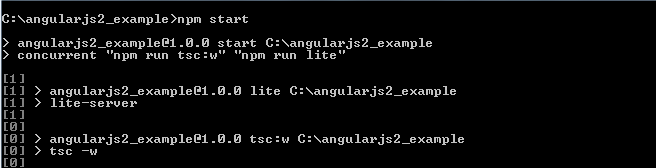
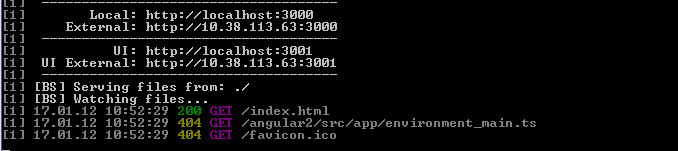
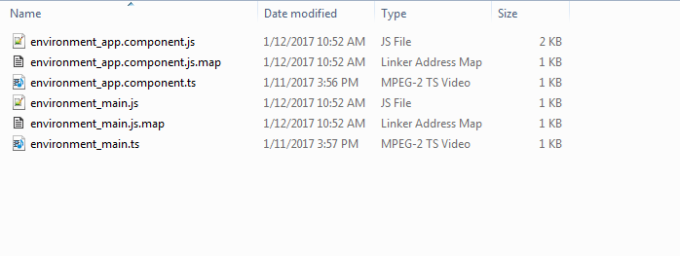
Final step exeute npm start command on prompt and you will our *.ts is converted to respective *.js files.
Code :-
1- tsconfig.json
{
"compilerOptions": {
"target": "es5",
"module": "system",
"moduleResolution": "node",
"sourceMap": true,
"emitDecoratorMetadata": true,
"experimentalDecorators": true,
"removeComments": false,
"noImplicitAny": false
},
"exclude": [
"node_modules",
"typings/main",
"typings/main.d.ts"
]
}
2- typings.json
{
"globalDependencies": {
"core-js": "registry:dt/core-js#0.0.0+20160602141332",
"jasmine": "registry:dt/jasmine#2.2.0+20160621224255",
"node": "registry:dt/node#6.0.0+20160621231320"
}
}

3:- package.json
{
"name": "angularjs2_example",
"version": "1.0.0",
"scripts": {
"start": "concurrent \"npm run tsc:w\" \"npm run lite\" ",
"tsc": "tsc",
"tsc:w": "tsc -w",
"lite": "lite-server",
"typings": "typings",
"postinstall": "typings install"
},
"license": "ISC",
"dependencies": {
"angular2": "2.0.0-beta.7",
"systemjs": "0.19.22",
"es6-promise": "^3.0.2",
"es6-shim": "^0.33.3",
"reflect-metadata": "0.1.2",
"rxjs": "5.0.0-beta.2",
"zone.js": "0.5.15"
},
"devDependencies": {
"concurrently": "^2.0.0",
"lite-server": "^2.1.0",
"typescript": "^1.7.5",
"typings":"^0.6.8"
}
}
4:- environmentconfiguration_app.component.ts
import {Component, View} from "angular2/core";
@Component({
selector: 'my-app'
})
@View({
template: '

Angular 2 App

'
})
export class AppComponent {
}
5:- environment_main.js
import {bootstrap} from "angular2/platform/browser"
import {AppComponent} from "./environmentconfiguration_app.component"
bootstrap(AppComponent);
6:- index.html
<!--!DOCTYPE html>
<!--!DOCTYPE html>
<!--html>
<!--head>
<!--title>Hello World<!--/title>
<!--script src="https://cdnjs.cloudflare.com/ajax/libs/es6-shim/0.33.3/es6-shim.min.js"><!--/script>
<!--script src="https://cdnjs.cloudflare.com/ajax/libs/systemjs/0.19.20/system-polyfills.js"><!--/script>
<!--script src="https://code.angularjs.org/2.0.0-beta.6/angular2-polyfills.js"><!--/script>
<!--script src="https://code.angularjs.org/tools/system.js"><!--/script>
<!--script src="https://code.angularjs.org/tools/typescript.js"><!--/script>
<!--script src="https://code.angularjs.org/2.0.0-beta.6/Rx.js"><!--/script>
<!--script src="https://code.angularjs.org/2.0.0-beta.6/angular2.dev.js"><!--/script>
<!--script>
System.config({
transpiler: 'typescript',
typescriptOptions: { emitDecoratorMetadata: true },
packages: {'app': {defaultExtension: 'ts'}},
map: { 'app': './app' }
});
System.import('app/environment_main')
.then(null, console.error.bind(console));
<!--/script>
<!--/head>
<!--body>
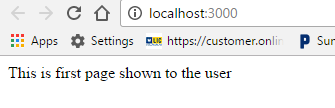
<!--my-app>This is first page shown to the user <!--/my-app>
<!--/body>
<!--/html>

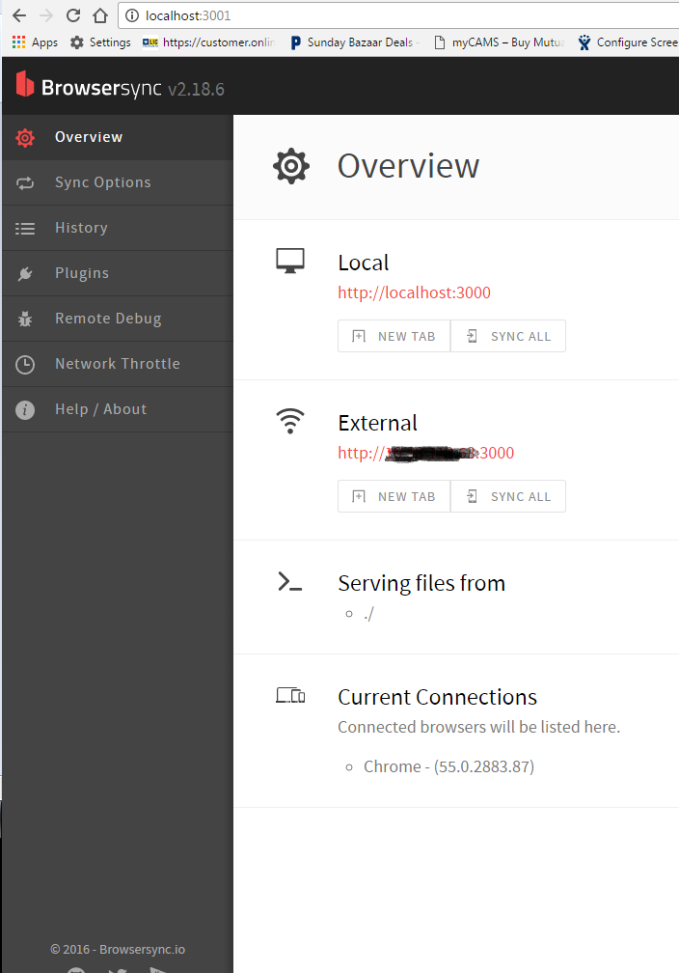
image1image2image3image4

image5image6

Wednesday, January 04, 2017

AngularJs Unit testing using Karma and Jasmine Frame work


Karma is a simple tool that allows you to execute JavaScript code in multiple real browsers. We can execute the command on command prompt and it display the result on prompt itself. Karma is good in advance to test our Angular js in all browsers during development and continuous integration server. Karma runs on Node.js and is available as an NPM package (for linux NVM).
==Karma Installation
# Install Karma:
$ npm install karma --save-dev
# Install plugins that your project needs:
$ npm install karma-jasmine karma-chrome-launcher --save-dev
This will install karma, karma-jasmine and karma-chrome-launcher packages into node_modules folder where we had executed above command.
# Run Karma:
$ ./node_modules/karma/bin/karma start
image1image2
Karma is not testing framework or assert library. It just help developer to to launch HTTP server and generates test runner HRML Files. For this we need to have a well defined Testing frame work. Many good frame work are available i.e. Jasmine, Mocha, QUnit etc. Here we will discuss only of Jasmine
Lets start with different aspect of Karma testing tool
1:- configuration
Karma needs to know about our project to test it and this is done with the help of configuration file.
C:\Software\karma\node_modules\.bin\karma init mySiddhu.conf.js
image3
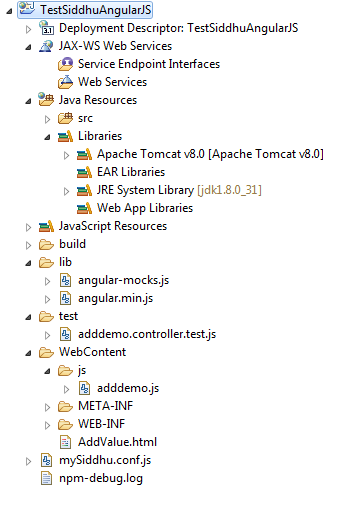
keep this mySiddhu.conf.js in your project folder i.e.in same line where your webcontent folder exist.
2:- Create test folder and inside it put following files
adddemo.controller.test.js
angular-mocks.js
angular.min.js
Note: We need to add angular-mocks.js and angular.min.js because when we execute or js files from C:/workspace-Angular-js/TestSiddhuAngularJS/WebContent/js/adddemo.js it will give error that it did not find angular
3:- Modify our mySiddhu.conf.js as shown below
// list of files / patterns to load in the browser
files: [
'C:/workspace-Angular-js/TestSiddhuAngularJS/lib/angular.min.js',
'C:/workspace-Angular-js/TestSiddhuAngularJS/lib/angular-mocks.js',
'C:/workspace-Angular-js/TestSiddhuAngularJS/WebContent/js/*.js',
'C:/workspace-Angular-js/TestSiddhuAngularJS/test/*.js'
],
4:- Start Karma server using this created js
C:\Software\karma\node_modules\.bin\karma start mySiddhu.conf.js
or using below command
C:\Software\karma\node_modules\.bin\karma start mySiddhu.conf.js --log-level debug --single-run
If you get error Error: Cannot find module 'jasmine-core' then use below command to install jasmine-core
C:\Software\karma>npm install jasmine-core --save-dev
image4
5:- Now execute your command and see the result on the screen

image5
=============JS files
1:- mySiddhu.conf.js
// Karma configuration
// Generated on Wed Jan 04 2017 14:08:26 GMT+0530 (India Standard Time)
module.exports = function(config) {
config.set({
// base path that will be used to resolve all patterns (eg. files, exclude)
basePath: '',

// frameworks to use
// available frameworks: https://npmjs.org/browse/keyword/karma-adapter
frameworks: ['jasmine'],

// list of files / patterns to load in the browser
files: [
'C:/workspace-Angular-js/TestSiddhuAngularJS/lib/angular.min.js',
'C:/workspace-Angular-js/TestSiddhuAngularJS/lib/angular-mocks.js',
'C:/workspace-Angular-js/TestSiddhuAngularJS/WebContent/js/*.js',
'C:/workspace-Angular-js/TestSiddhuAngularJS/test/*.js'
],

// list of files to exclude
exclude: [
],

// preprocess matching files before serving them to the browser
// available preprocessors: https://npmjs.org/browse/keyword/karma-preprocessor
preprocessors: {
},

// test results reporter to use
// possible values: 'dots', 'progress'
// available reporters: https://npmjs.org/browse/keyword/karma-reporter
reporters: ['progress'],

// web server port
port: 9876,

// enable / disable colors in the output (reporters and logs)
colors: true,

// level of logging
// possible values: config.LOG_DISABLE || config.LOG_ERROR || config.LOG_WARN || config.LOG_INFO || config.LOG_DEBUG
logLevel: config.LOG_INFO,

// enable / disable watching file and executing tests whenever any file changes
autoWatch: true,

// start these browsers
// available browser launchers: https://npmjs.org/browse/keyword/karma-launcher
browsers: ['Chrome'],

// Continuous Integration mode
// if true, Karma captures browsers, runs the tests and exits
singleRun: false,
// Concurrency level
// how many browser should be started simultaneous
concurrency: Infinity
})
}
Note :- Make sure that you add js in sequence in conf file i.e.
'C:/workspace-Angular-js/TestSiddhuAngularJS/lib/angular.min.js',
'C:/workspace-Angular-js/TestSiddhuAngularJS/lib/angular-mocks.js',

if you try to use C:/workspace-Angular-js/TestSiddhuAngularJS/lib/a*.js instead it will give error.
2:- adddemo.controller.test.js
describe('myApp', function () {
beforeEach(module('myApp'));
var $controller;
beforeEach(inject(function(_$controller_){
$controller = _$controller_;
}));
describe('add', function () {
it('1 + 1 should equal 2', function () {
var $scope = {};
var controller = $controller('myCtrl', { $scope: $scope });
$scope.firstNumber = 5;
$scope.secondNumber = 2;
$scope.add();
expect($scope.answer).toBe(7);
}); 
});
});
3:- adddemo.js
var app = angular.module('myApp', []);
app.controller('myCtrl', function($scope) {
$scope.add=function(firstNumber,secondNumber){
//alert('hello');
$scope.answer = parseInt($scope.firstNumber) + parseInt($scope.secondNumber);
//Now you can set a debugger here and check the data
}
});
Our Angular JS project for which we had written Karma and Jasmine unit testing.
1- HTMl File
<!--!DOCTYPE html>
<!--html>
<!--script src="https://ajax.googleapis.com/ajax/libs/angularjs/1.4.8/angular.min.js"><!--/script>
<!--script src="js/adddemo.js"><!--/script>
<!--body>
<!--div ng-app="myApp" ng-controller="myCtrl">
First Number: <!--input ng-model="firstNumber">
Second Number: <!--input ng-model="secondNumber">
<!--p>Answer: {{answer}}<!--/p>
<!--button name= "Add" type="button" ng-click='add(YourTextData)'>Click Me!<!--/button>
<!--/div>
<!--/body>
<!--/html>
2- adddemo.js
var app = angular.module('myApp', []);
app.controller('myCtrl', function($scope) {
$scope.add=function(firstNumber,secondNumber){
//alert('hello');
$scope.answer = parseInt($scope.firstNumber) + parseInt($scope.secondNumber);
//Now you can set a debugger here and check the data
}
});
Folder Structure of the project in Eclipse
image6