Thursday, October 20, 2016

NodeJS HTTP Example to fetch value from Form/Screen

var http = require('http');
var uhtml = 
'Post Example' +
'' +
'Fetching Values from Form/Screen using Node JS
'+

'
' +

'Name :
' +

'Surname :
' +

'' +
'
' +
'';
http.createServer(function (req, res) {
var body = "";
req.on('data', function (chunk) {
body += chunk;
});
req.on('end', function () {
console.log('Posted Data: ' + body);
res.writeHead(200);
res.end(uhtml);
});
}).listen(1234);

image3

MySQL Connection using NodeJS and How to resolve Error: Cannot find module 'mysql'

var mysql = require('mysql'); 
var connection = mysql.createConnection({ 
host : 'localhost', 
user : 'siddhu', 
password : 'siddhu', 
database : 'vscrum' 
}); 
connection.connect(); 
connection.query('SELECT * FROM vscrum.kpi', function(err, results) 
{ 
if (err) 
{ 
console.error(err); 
} 
else 
{ 
console.log('First row of department table : ', results[0]); 
} 
}); 
connection.end();
Note: How to resolve Error: Cannot find module 'mysql'
Above statement says that your project did not get mysql module to execute.
If you are working on window or linux resolutions is same. As i am using Window and my project TestSiddhuNodeJs is in C:\workspace-nodejs\ use follwing below command to execute
Step 1:- Go to C:\workspace-nodejs\TestSiddhuNodeJs
Step 2:- Execute npm install mysq
C:\workspace-nodejs\TestSiddhuNodeJs
`-- mysql@2.11.1
+-- bignumber.js@2.3.0
+-- readable-stream@1.1.14
| +-- core-util-is@1.0.2
| +-- inherits@2.0.3
| +-- isarray@0.0.1
| `-- string_decoder@0.10.31
`-- sqlstring@2.0.1
npm WARN enoent ENOENT: no such file or directory, open 'C:\workspace-nodejs\TestSiddhuNodeJs\package.json'
npm WARN TestSiddhuNodeJs No description
npm WARN TestSiddhuNodeJs No repository field.
npm WARN TestSiddhuNodeJs No README data
npm WARN TestSiddhuNodeJs No license field.
Step 3:- Execute your programe and see the result.

Wednesday, October 19, 2016

Executing Simple Node Js program using Syns, Async and CallBacks


1- Sync method
//Simple way to Read File Sync Way
var fs = require('fs');
var content = fs.readFileSync("SiddhuReadMe.txt", "utf8");
console.log(content);
console.log('Reading file text from JS file...');

2- Async Method
In below example we are calling the txt files Async i.e. we are not waiting for function readFile() to complete then execute console.log('Reading file text from JS file...'). We execute console.log and then we display output of readFile once we get the values
//Simple way to Read File ASync Way
var fs = require('fs');
fs.readFile("SiddhuReadMe.txt", "utf8", function(err, content) {
if (err) {
return console.log(err);
}
console.log(content);
});
console.log('Reading file text from JS file...');
3- Callbacks
Call back stands for calling one function from anther. Here in below example we are calling or passing function name as argument i.e. SiddhuMycontent function() from readingfile().
In below example all out code get executed and then we get the reply from our txt files that state that we are not waiting for callback function to execute.
Best scenario to use callback approach is when user want to download the big files and we don;t want our application to stop executing. i.e. we want our application to run parallel while file is downloading.
//Simple way to Read File Callback way i.e. calling function from another function
var fs = require('fs');
var fcontent ;
function readingfile(callback){
fs.readFile("SiddhuReadMe.txt", "utf8", function(err, content) {
fcontent=content;
if (err)
{
return console.error(err.stack);
}
callback(content);
})
};
function SiddhuMycontent() {
console.log(fcontent);
}
readingfile(SiddhuMycontent);
console.log('Reading file text from JS files....');

image2

Nodejs Installation and Configuration with Eclispe

- Download Nodeclipse from below given location
http://www.nodeclipse.org/
or You can also try belwo given URL to drag drop in your Eclipse. We had used Mars version of Eclipse.
https://marketplace.eclipse.org/content/nodeclipse
- Download latest version of Node.js from
https://nodejs.org/en/
- Window, Linux and MAc version are available
https://nodejs.org/en/download/
- Window :- https://nodejs.org/dist/v6.9.1/node-v6.9.1-x64.msi
For window Once you installed Nodejs it will create nodejs inside Program Files folder of C:\
C:\Program Files\nodejs
Make sure you had node.exe and npm.cmd inside this folder.
- Add this in your PATH to make Nodejs available on cmd prompt by adding following line your system path.
C:\Program Files\nodejs\
- Check availability of Node js using following command on command prompt
node --version
- This will display the version of installed NodeJs.
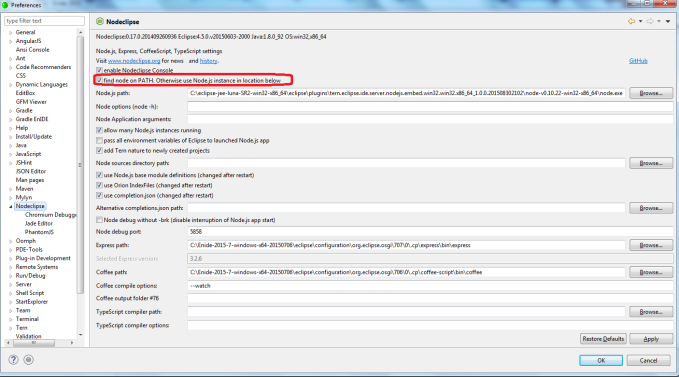
- Open your above nodeclipse and bydefault it will come with inbuild Node js. If you want to use latest Node js use configure your Eclipse using below screen.
Window --> Preference --> NodeEclipse

nodejs

Thursday, September 08, 2016

Simple explaination of Horizontal and Veritical clustring concept

Horizontally clustered environment:- Application is deployed on multiple physical machines. Each machine is ready for requests. This concept helps in protection over hardware failure, increases efficiency and best part is it provides load balancing along with process fail over. As all good thing come with overhead this style too has limitation i.e. since there are many number of physical machines installation and maintenance cost increases proportionally.

Vertical clustering:- Multiple application server instances are hosted on the same physical machine. So in this scenario we need to have high end machine configuration as all the request is taken by one single machine. Disadvantage:- If hardware fails then there may not be ready alternative.

Wednesday, September 07, 2016

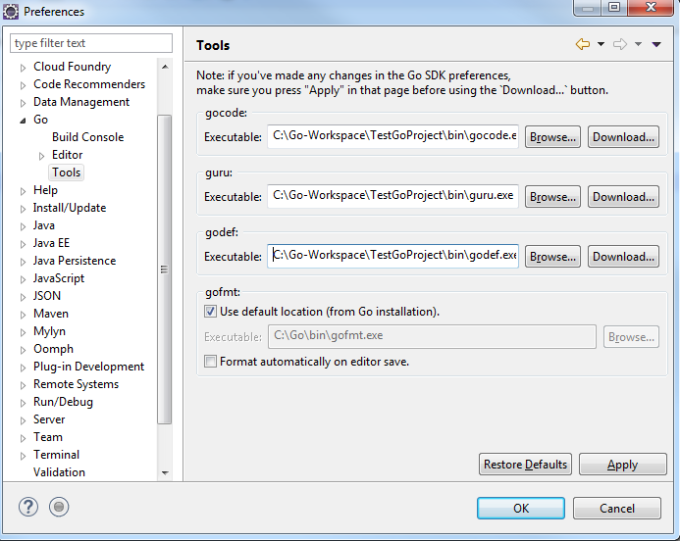
How to set gocode, guru and godef parameter in eclipse

Step 1:- Go to window -- preference and then click on GO option
Step 2:- Make sure to set the GOPATH which is similar to our GO Eclipse project path
i.e. C:\Go-Workspace\TestGoProject
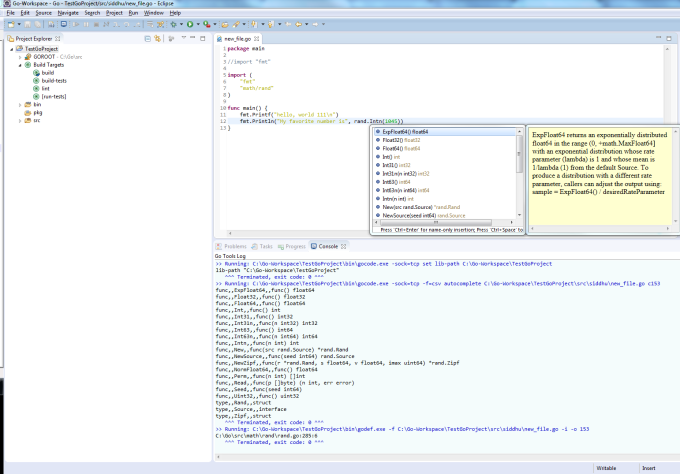
Step 3 :- Finally Click on Download button as shown in image and it will down load all the necesarry *.go for us in bin folder of Eclipse Project
image5
Step 4:- Finally click Apply and finish
image6

image7

How to install goeclipse for Go Language and execute simple hello world project in Eclipse IDE

Step 1:- Download Go from
https://golang.org/
Step 2:- Download the latest version of JAVA/J2EE Eclipse Version. We had taken Neon from Eclipse Site
https://eclipse.org/downloads/
https://www.eclipse.org/downloads/download.php?file=/oomph/epp/neon/R/eclipse-inst-win64.exe
Step 3:- Set GOROOT Variable in your system till the bin path i.e We had installed Go in C Drive so set GOROOT=C:\Go
Step 4:- Install goEclipse Plugin from belwo link. It will take time to configure Go Plugin.
https://marketplace.eclipse.org/content/goclipse
Step 5:- Create New Go Project

Step 6:- Make sure to create a package inside src folder of Created Go Project by Eclipse
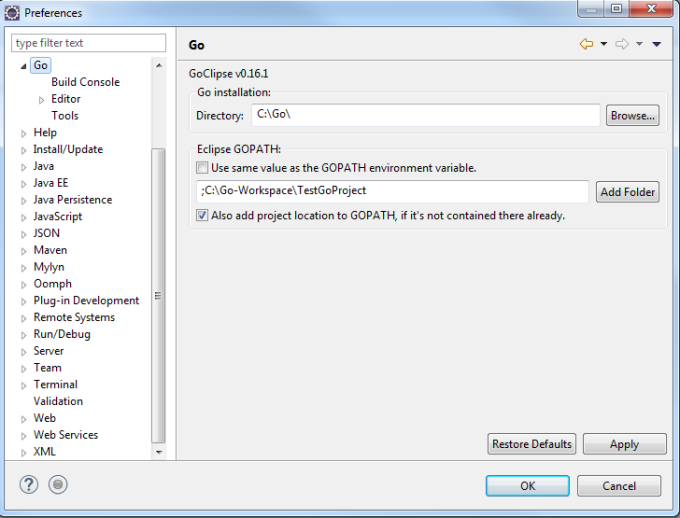
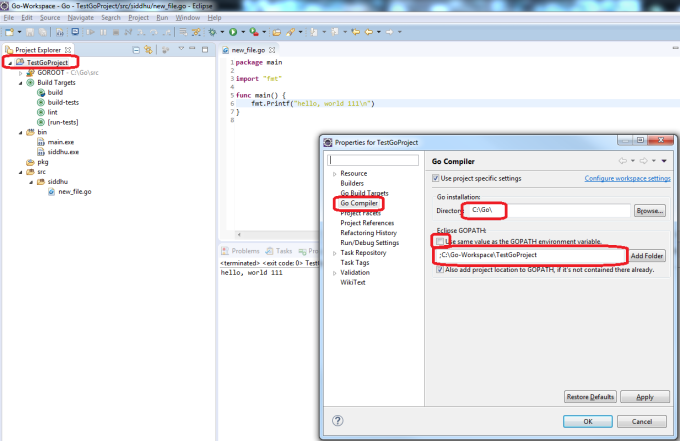
Step 7:- Click on the project and press ALT+ENTER and following below screen will be displayed
image1
Step 8:- For GO Installation set the path where bin folder of Go project is set
Step 9 :- Uncheck check box :- Use same variable as the GOPATH environment variable
Step 10:- Add your newly created Eclipse project by using add Folder button and click apply and ok.
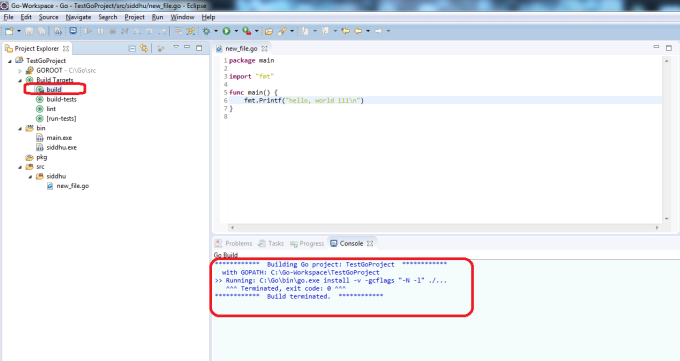
Step 10:- Finally build the application by clicking on build as shown in the below image
image2
Step 11:- After successful build we will see siddhu.exe created inside the bin folder of our Eclipse project.
i.e. siddhu name is taken from the folder name in which we keep the *.go files.
Step 12:- Two way to execute
A- Either from command prompt. Navigate till bin folder of eclispe project and execute exe as shown in belwo figure
image3
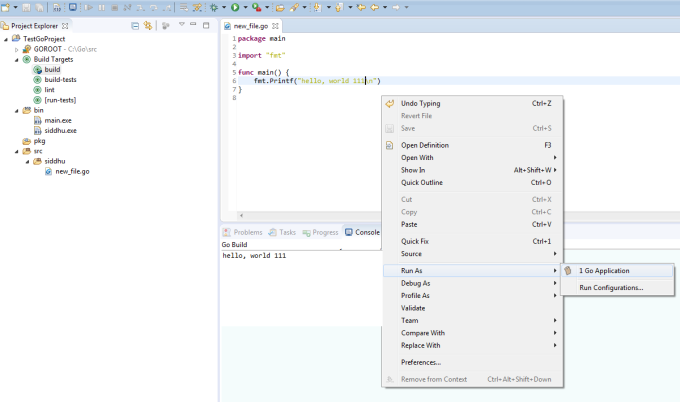
b- Execute it using Eclipse i.e. right click on file in eclipse and select Rus As->Go Application
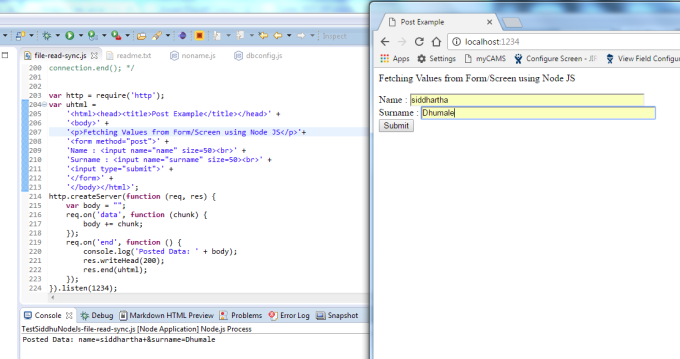
image4