Thursday, October 27, 2016

Installation of Mongo DB and accessing it using JAVA

Note: We are using Window O/S hence using msi for installation. Please chose version as per your O/S.
Step 1:- Install Mongo by downloading it from below url
https://www.mongodb.com/download-center#community
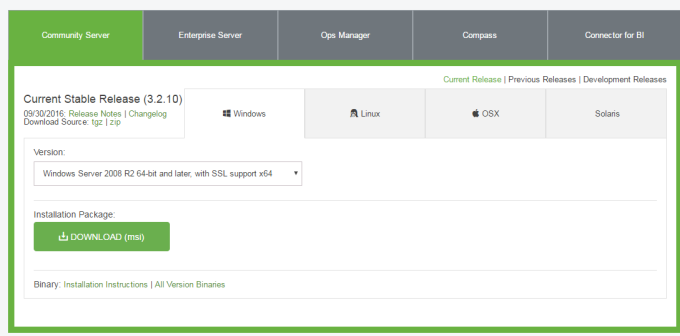
image1

This will create MongoDb Server in your machine at below given position
C:\Program Files\MongoDB\Server\3.2\bin
Step 2: Make entry of C:\Program Files\MongoDB\Server\3.2\bin in System and Env Variable. So that we can access it from cmd prompt.
Step 3:- Create a folder \data\db inside c: folder
i.e. C:\data\db
Step 4:- Run mongod command in side this folder
C:\data\db>mongod
server will be started with below line
2016-10-27T13:11:17.862+0530 I NETWORK [initandlisten] waiting for connections on port 27017

Step 4:- Run mongo command from another cmd prompt and you will see mongo is able to connect

image2
Step 5:- Create your own Database first using following belwo comman
use siddhudb
Step 6:- to see numbers of db we can use show dbs commands i.e. show dbs. Same way if you want to see current working database just enter db command i.e. db and it will show below output
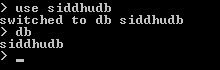
image3
Step 7:- Your Created database (siddhudb) is not present in list when we type show dbs command. Reason is to display database we need to insert at least one document into it.
db.user.insert({"name":"siddhartha dhumale"})
You will see one data is inserted.
> db.user.insert({"name":"siddhartha dhumale"})
WriteResult({ "nInserted" : 1 })
>
Now when you enter show dbs command it will show you our created db.
> show dbs
local 0.000GB
siddhudb 0.000GB
>

Step 8:- Lets try to connect this db using java class. First you need to download required driver for the same. Use below given link. Make sure we had following in our class path
mongodb-driver-3.0.1.jar :- http://mongodb.github.io/mongo-java-driver/?_ga=1.55182892.626961242.1477037916
mongodb-driver-core-3.0.1.jar:-https://oss.sonatype.org/content/repositories/releases/org/mongodb/mongodb-driver-core/3.3.0/
bson-3.3.0.jar :- https://oss.sonatype.org/content/repositories/releases/org/mongodb/bson/3.3.0/
Step 9:- We are using eclipse IDE. Use below given programe to test connection to Mongo using java code. This will display output as name of db we had in our Mongo.
package com.test.siddhu;
import java.util.List;
import com.mongodb.DB;
import com.mongodb.MongoClient;
public class MongoDBConnectionClass {

public static void main( String args[] ) {

try{

// To connect to mongodb server
MongoClient mongoClient = new MongoClient( "localhost" , 27017 );

List dbs = mongoClient.getDatabaseNames();
for(String dbase : dbs){
System.out.println(dbase);
}

}catch(Exception e){
System.err.println( e.getClass().getName() + ": " + e.getMessage() );
}
}
}
image4

Tuesday, October 25, 2016

Calling Web Service using Angular JS


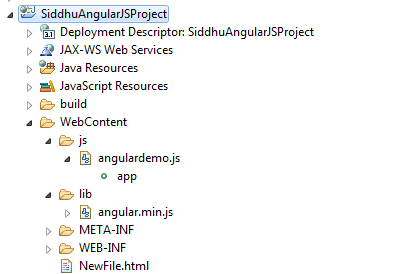
Step 1:- Create a web dynamic Project and convert the same to AngulrJS using belwo option
Right Click Project --> Configure --> Convert to AngularJS Project
Step 2:- Create a simple html file
WebContent folder ->New ->HTML
and add following code
<!–script src=”https://ajax.googleapis.com/ajax/libs/angularjs/1.2.23/angular.min.js”>&lt;!–/script> –>
<!–script src=”lib/angular.min.js”><!–/script>
<!–script src=”js/angularwebservicedemo.js”><!–/script>
<!–article ng-app=”booksInventoryApp”>
<!–section ng-controller=”booksCtrl”>
<!–h2 ng-repeat=”book in data.books”>{{book.name}}<!–/h2> 
<!–/section>
<!–/article>
Step 2:- Create a js folder inside webcontent folder and create a js file inside it with below code\
/**
*
*/
var app = angular.module('booksInventoryApp', []);
app.controller('booksCtrl', function($scope, $http) {
$http.get("https://whispering-woodland-9020.herokuapp.com/getAllBooks")
.then(function(response) {
$scope.data = response.data;
});
});
image7
Note: You can also get the same code from below
http://stackoverflow.com/questions/30625002/getting-data-from-a-web-service-with-angular-js

Angular JS Project using Eclipse

Step :-1 Install Eclipse
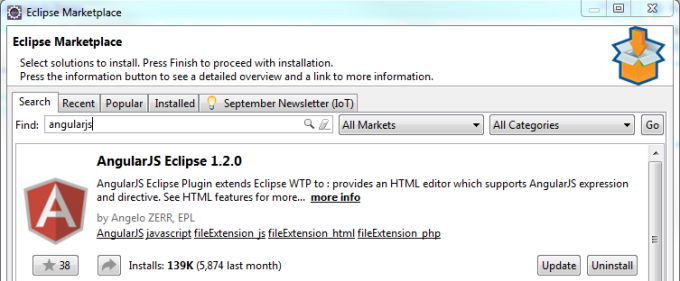
Step 2:- Go to market place of Eclispe and search for Angular JS and install that package in your Eclipse
image1
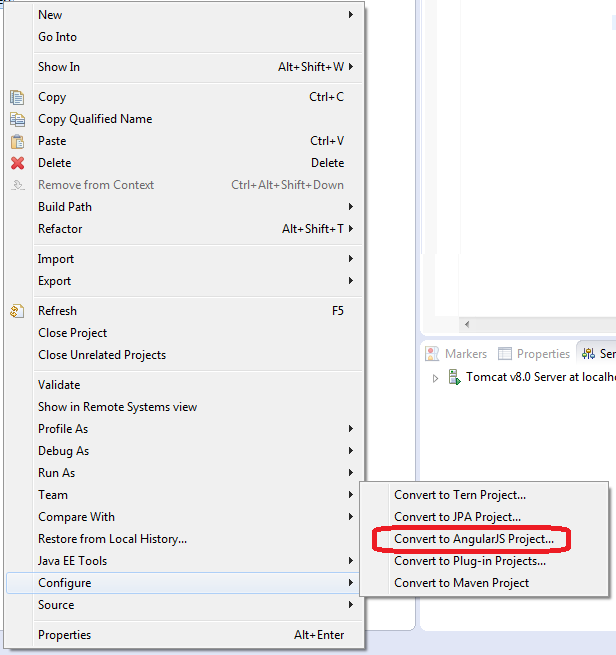
Step 3:- Create a web dynamic Project and convert the same to AngulrJS using belwo option
Right Click Project --> Configure --> Convert to AngularJS Project
image2
Step 3:- Create a simple html file
WebContent folder ->New ->HTML
and add following code
 <!--!DOCTYPE html PUBLIC "-//W3C//DTD HTML 4.01 Transitional//EN" "http://www.w3.org/TR/html4/loose.dtd">
 <!--html ng-app="siddhudemoApp">
 <!--head>
 <!--meta http-equiv="Content-Type" content="text/html; charset=ISO-8859-1">
 <!--title>Siddhu AngularJs Demo<!--/title>
 <!--script src="lib/angular.min.js"><!--/script>
 <!--script src="js/angulardemo.js"><!--/script>
 <!--/head>
 <!--body>
  <!--div ng-controller="siddhudemoCtrl">
   <!--table border="1">
    <!--tr>
     <!--td>Display the name<!--/td>
     <!--td ng-bind="name"><!--/td>
    <!--/tr>
    <!--tr>
     <!--td>Display the surname<!--/td>
     <!--td ng-bind="surname"><!--/td>
    <!--/tr>
   <!--/table>
  <!--/div>
 <!--/body>
<!--/html>
Step 4:- Create a js folder inside webcontent folder and create a js file inside it with below code\
/**
* 
*/
var app = angular.module("siddhudemoApp", []);
app.controller("siddhudemoCtrl", function($scope) {
$scope.name = "Siddhartha";
$scope.surname = "Dhumale";
});

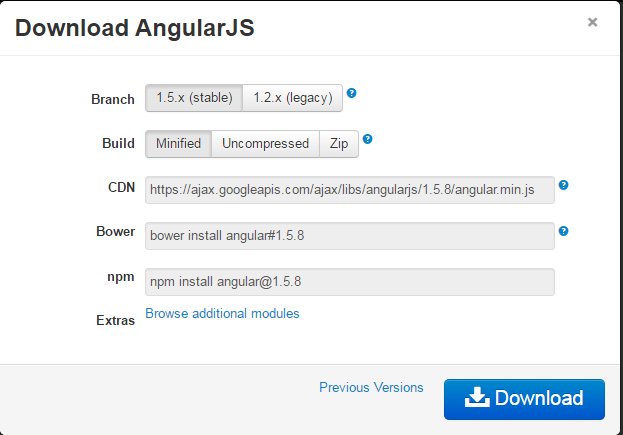
Step 5:- Create a lib folder inside webcontent folder and put angular.min.js inside it.
You can download the same from
Image3.png
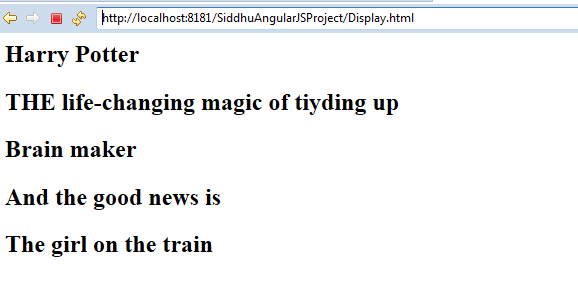
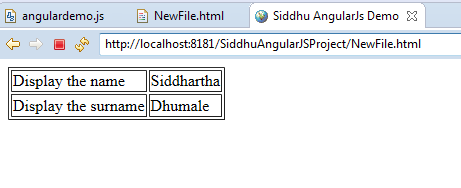
Step 6:- Excute the same on Server i.e. Tomcat and see the output
image4

image5

Monday, October 24, 2016

Calling REST W/S using NodeJS


Follwing code given belwo can be used to call REST W/S using NodeJS
/**
* New node file
*/
var Client = require('node-rest-client').Client;

var client = new Client();

// direct way 
client.get("http://services.groupkt.com/country/get/iso2code/IN", function (data, response) {
// parsed response body as js object 
console.log(data);
// raw response 
console.log(response);
});

// registering remote methods 
client.registerMethod("getIndiaCountryName", "http://services.groupkt.com/country/get/iso2code/IN", "GET");

client.methods.getIndiaCountryName(function (data, response) {
// parsed response body as js object 
console.log("Data----------"+data);
// raw response 
console.log("response----------"+response);
});
//
/*
* console.log(data); will give you belwo output.
{ RestResponse: 
{ messages: 
[ 'More webservices are available at http://www.groupkt.com/post/f2129b88/services.htm',
'Country found matching code [IN].' ],
result: { name: 'India', alpha2_code: 'IN', alpha3_code: 'IND' } } }
*/
Note: Make sure to install node-rest-client module in your application. Command to install the same
npm install node-rest-client

How to call SOAP Web service using NODEJS

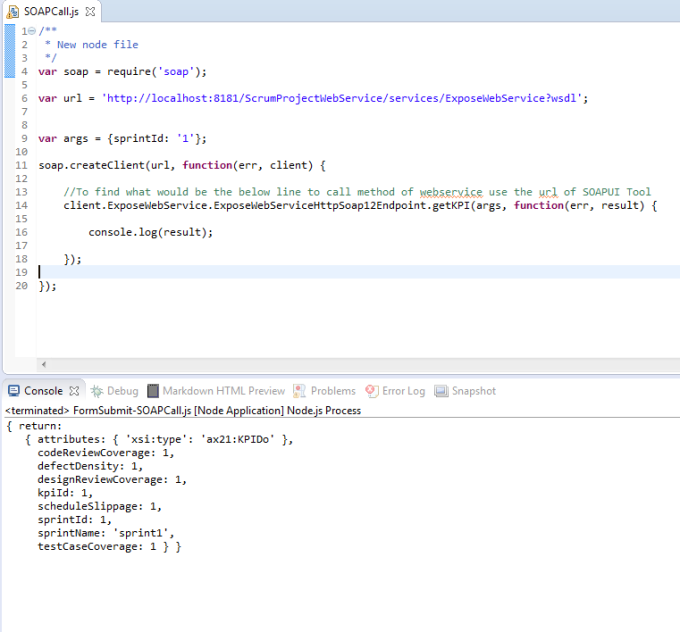
Use below code to call SOAP Web service using Nodejs
var soap = require('soap');
var url = 'http://localhost:8181/ScrumProjectWebService/services/ExposeWebService?wsdl';

var args = {sprintId: '1'};
soap.createClient(url, function(err, client) {
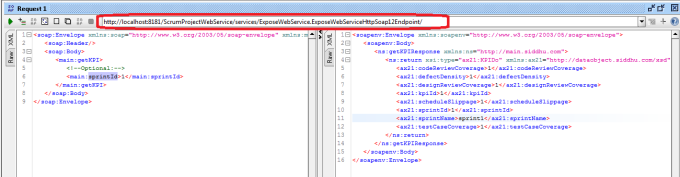
//To find what would be the below line to call method of webservice use the url of SOAPUI Tool
client.ExposeWebService.ExposeWebServiceHttpSoap12Endpoint.getKPI(args, function(err, result) {
console.log(result);
});
});
image6


image7
Note: Make sure you have soap module installed in yout Project else install it using below command
npm install soap

MYSQL CRUD Operation using NodeJS

Step -1 Create Server.js file

var http = require('http'),
util = require('util'),
fs = require('fs'),
url = require('url'),
qs = require('querystring');
var mysql = require('mysql');
var connection = mysql.createConnection({
host : 'localhost',
user : 'siddhu',
password : 'siddhu',
database : 'vscrum'
});
var server = http.createServer(function (req,res){
var url_parts = url.parse(req.url,true);
//console.log(url_parts);
var body = '';
if(req.method === 'POST'){
// res.end('post');
console.log('Request found with POST method');
req.on('data', function (data) {
body += data;
console.log('got data:'+data);
});
req.on('end', function () {
var POST = qs.parse(body);
// use POST
res.end("Sent data are id:"+POST.id+" name:"+POST.name);
});

} else {
console.log('Request found with GET method');
req.on('data',function(data){ res.end(' data event: '+data);});
if(url_parts.pathname == '/')
fs.readFile('./form.html',function(error,data){
console.log('Serving the page form.html');
res.end(data);
});
else if(url_parts.pathname == '/getData'){
console.log('Serving the Got Data.');
getData(res,url_parts);
}
//update
else if(url_parts.pathname == '/getDataForUpdate'){
console.log('Updating the Got Data.');
getDataForUpdate(res,url_parts);
}
//Delete
else if(url_parts.pathname == '/getDataforDelete'){
console.log('Deleting the Got Data.');
getDataforDelete(res,url_parts);
}
}
});
server.listen(1234);
console.log('Server listenning at localhost:1234');
function getData(res,url_parts){
console.log("Data submitted by the user id:"+url_parts.query.id+" and name:"+url_parts.query.name);
res.end("Data submitted by the user id:"+url_parts.query.id+" and name:"+url_parts.query.name);
connection.connect();
//insert into vscrum.nodejstable values ('1','sid')
//connection.query('SELECT * FROM vscrum.kpi', function(err, results)
var posts = {
id: url_parts.query.id,
name: url_parts.query.name
};
connection.query('INSERT INTO vscrum.nodejstable SET ?',posts, function(err, results)
{
if (err)
{
console.error(err);
}
else
{
console.log('First row of department table : ', results[0]);
}
});
connection.end();
}
//Update
function getDataForUpdate(res,url_parts){
console.log("Data submitted for Update by the user id:"+url_parts.query.id+" and name:"+url_parts.query.name);
res.end("Data submitted for Update by the user id:"+url_parts.query.id+" and name:"+url_parts.query.name);
connection.connect();
//update vscrum.nodejstable set name='siddharatha' where id = '1'
//connection.query('SELECT * FROM vscrum.kpi', function(err, results)
var posts = {
id: url_parts.query.id,
name: url_parts.query.name
};
//connection.query('UPDATE users SET Name = ? WHERE UserID = ?', [name, userId])
connection.query('UPDATE vscrum.nodejstable SET name=? where id=?',[url_parts.query.name,url_parts.query.id], function(err, results)
{
if (err)
{
console.error(err);
}
else
{
console.log('Row updated: ', results[0]);
}
});
connection.end();
}

//Delete
function getDataforDelete(res,url_parts){
console.log("Data submitted for Delete by the user id:"+url_parts.query.id+" and name:"+url_parts.query.name);
res.end("Data submitted for Delete by the user id:"+url_parts.query.id+" and name:"+url_parts.query.name);
connection.connect();
//delete from vscrum.nodejstable where id='2'
//connection.query('SELECT * FROM vscrum.kpi', function(err, results)
var posts = {
id: url_parts.query.id,
name: url_parts.query.name
};
connection.query('DELETE FROM vscrum.nodejstable where id=?', [url_parts.query.id], function(err, results)
{
if (err)
{
console.error(err);
}
else
{
console.log('Row deleted: ', results[0]);
}
});
connection.end();
}

Step -2 Create Form.html as given below
'-
'-
'-
'- Untitled Document
'-
'-
'-
'-

'-
'-
'-

'-
'-
'-

'-
'-
'-

'-

'-
'-


image5image4

Thursday, October 20, 2016

NodeJS Http GET Example

var http = require('http');
http.get("http://www.google.com", function(res) {
console.log("Got response: " + res.statusCode);
}).on('error', function(e) {
console.log("Got error: " + e.message);
});

Result :- Got response: 302