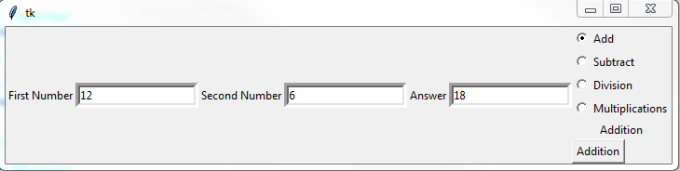
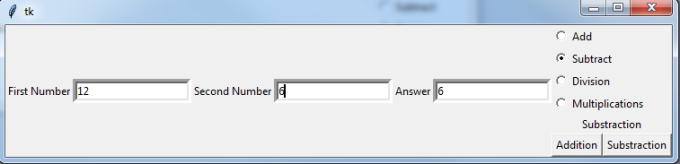
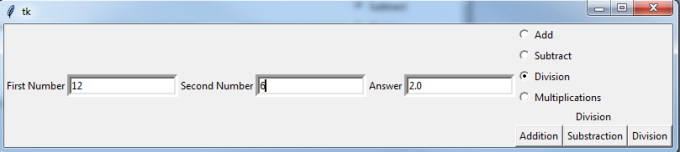
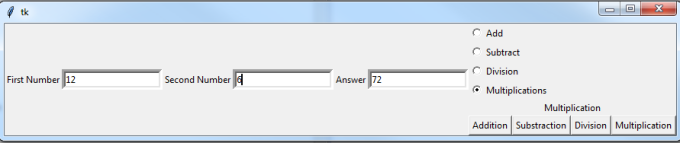
Python support connection with many RDBMS i.e. Oracle, Cybase, MYSQL etc. In this example we has selected MYSQL as DB and performed basic operation like Select, Insert, Update and Delete.
We had used tkinter as Python UI for user and MYSQLdb package for connecting MYSQL.
from tkinter import *
import tkinter
from tkinter import messagebox
from lib2to3.fixer_util import Number
import MySQLdb
top = tkinter.Tk()
L1 = Label(top, text="First Name")
L1.pack( side = LEFT)
E1 = Entry(top, bd =5)
E1.pack(side = LEFT)
L1.pack( side = LEFT)
E1 = Entry(top, bd =5)
E1.pack(side = LEFT)
L2 = Label(top, text="Second Name")
L2.pack( side = LEFT)
E2 = Entry(top, bd =5)
E2.pack(side = LEFT)
'''L3 = Label(top, text="Answer")
L3.pack( side = LEFT)
E3 = Entry(top, bd =5)
E3.pack(side = LEFT)'''
L3.pack( side = LEFT)
E3 = Entry(top, bd =5)
E3.pack(side = LEFT)'''
def buttonCallBack(selection):
print("E1.get()"+E1.get())
print("E2.get()"+E2.get())
print("selection"+selection)
a = E1.get()
b = E2.get()
if selection in ('Insert'):
# Open database connection
db = MySQLdb.connect("localhost","siddhu","siddhu","siddhutest" )
# prepare a cursor object using cursor() method
cursor = db.cursor()
# execute SQL query
cursor.execute("SELECT VERSION()")
# Fetch a single row
data = cursor.fetchone()
print ("Database version : %s " % data)
# Drop table if it already exist
cursor.execute("DROP TABLE IF EXISTS SIDDHU_TEST")
# Create table Example
sql = """CREATE TABLE SIDDHU_TEST (
FNAME CHAR(20) NOT NULL,
LNAME CHAR(20))"""
cursor.execute(sql)
# Inserting in Table Example:- Prepare SQL query to INSERT a record into the database and accept the value dynamic. This is similar to prepare statement which we create.
sql = "INSERT INTO SIDDHU_TEST(FNAME, \
LNAME) \
VALUES ('%s', '%s')" % \
('siddhu', 'dhumale')
try:
# Execute command
cursor.execute(sql)
# Commit changes
db.commit()
except:
# Rollback if needed
db.rollback()
# disconnect from server
db.close()
print("Data Inserted properly "+a +"--"+b)
elif selection in ('Update'):
# Open database connection
db = MySQLdb.connect("localhost","siddhu","siddhu","siddhutest" )
# prepare a cursor object using cursor() method
cursor = db.cursor()
# execute SQL query
cursor.execute("SELECT VERSION()")
# Fetch a single row
data = cursor.fetchone()
print ("Database version : %s " % data)
# Update Exmaple:- Update record
sql = "UPDATE SIDDHU_TEST SET LNAME = '%s'" % (b) +" WHERE FNAME = '%s'" % (a)
try:
# Execute the SQL command
cursor.execute(sql)
# Commit your changes in the database
db.commit()
except:
# Rollback in case there is any error
db.rollback()
db.close()
print("Data Updated properly "+a +"--"+b)
elif selection in ('Delete'):
# Open database connection
db = MySQLdb.connect("localhost","siddhu","siddhu","siddhutest" )
# prepare a cursor object using cursor() method
cursor = db.cursor()
# execute SQL query
cursor.execute("SELECT VERSION()")
# Fetch a single row
data = cursor.fetchone()
print ("Database version : %s " % data)
# Delete Operation :- Delete Opearations
sql = "DELETE FROM SIDDHU_TEST WHERE FNAME = '%s'" % (a)
try:
# Execute the SQL command
cursor.execute(sql)
# Commit your changes in the database
db.commit()
except:
# Rollback in case there is any error
db.rollback()
db.close()
print("Data Deleted properly "+a +"--"+b)
else:
# Open database connection
db = MySQLdb.connect("localhost","siddhu","siddhu","siddhutest" )
# prepare a cursor object using cursor() method
cursor = db.cursor()
# execute SQL query
cursor.execute("SELECT VERSION()")
# Fetch a single row
data = cursor.fetchone()
print ("Database version : %s " % data)
# Select Query Example :- Selecting data from the table.
sql = "SELECT * FROM SIDDHU_TEST \
WHERE FNAME = '%s'" % (a)
try:
# Execute the SQL command
cursor.execute(sql)
lname = ""
# Fetch all the rows in a list of lists.
results = cursor.fetchall()
for row in results:
fname = row[0]
lname = row[1]
# Now print fetched result
E2.delete(0,'end')
print ("Value Fetch properly lname="+lname)
E2.insert(0, lname)
except:
db.close()
print ("Value Fetch properly")
print("E1.get()"+E1.get())
print("E2.get()"+E2.get())
print("selection"+selection)
a = E1.get()
b = E2.get()
if selection in ('Insert'):
# Open database connection
db = MySQLdb.connect("localhost","siddhu","siddhu","siddhutest" )
# prepare a cursor object using cursor() method
cursor = db.cursor()
# execute SQL query
cursor.execute("SELECT VERSION()")
# Fetch a single row
data = cursor.fetchone()
print ("Database version : %s " % data)
# Drop table if it already exist
cursor.execute("DROP TABLE IF EXISTS SIDDHU_TEST")
# Create table Example
sql = """CREATE TABLE SIDDHU_TEST (
FNAME CHAR(20) NOT NULL,
LNAME CHAR(20))"""
cursor.execute(sql)
# Inserting in Table Example:- Prepare SQL query to INSERT a record into the database and accept the value dynamic. This is similar to prepare statement which we create.
sql = "INSERT INTO SIDDHU_TEST(FNAME, \
LNAME) \
VALUES ('%s', '%s')" % \
('siddhu', 'dhumale')
try:
# Execute command
cursor.execute(sql)
# Commit changes
db.commit()
except:
# Rollback if needed
db.rollback()
# disconnect from server
db.close()
print("Data Inserted properly "+a +"--"+b)
elif selection in ('Update'):
# Open database connection
db = MySQLdb.connect("localhost","siddhu","siddhu","siddhutest" )
# prepare a cursor object using cursor() method
cursor = db.cursor()
# execute SQL query
cursor.execute("SELECT VERSION()")
# Fetch a single row
data = cursor.fetchone()
print ("Database version : %s " % data)
# Update Exmaple:- Update record
sql = "UPDATE SIDDHU_TEST SET LNAME = '%s'" % (b) +" WHERE FNAME = '%s'" % (a)
try:
# Execute the SQL command
cursor.execute(sql)
# Commit your changes in the database
db.commit()
except:
# Rollback in case there is any error
db.rollback()
db.close()
print("Data Updated properly "+a +"--"+b)
elif selection in ('Delete'):
# Open database connection
db = MySQLdb.connect("localhost","siddhu","siddhu","siddhutest" )
# prepare a cursor object using cursor() method
cursor = db.cursor()
# execute SQL query
cursor.execute("SELECT VERSION()")
# Fetch a single row
data = cursor.fetchone()
print ("Database version : %s " % data)
# Delete Operation :- Delete Opearations
sql = "DELETE FROM SIDDHU_TEST WHERE FNAME = '%s'" % (a)
try:
# Execute the SQL command
cursor.execute(sql)
# Commit your changes in the database
db.commit()
except:
# Rollback in case there is any error
db.rollback()
db.close()
print("Data Deleted properly "+a +"--"+b)
else:
# Open database connection
db = MySQLdb.connect("localhost","siddhu","siddhu","siddhutest" )
# prepare a cursor object using cursor() method
cursor = db.cursor()
# execute SQL query
cursor.execute("SELECT VERSION()")
# Fetch a single row
data = cursor.fetchone()
print ("Database version : %s " % data)
# Select Query Example :- Selecting data from the table.
sql = "SELECT * FROM SIDDHU_TEST \
WHERE FNAME = '%s'" % (a)
try:
# Execute the SQL command
cursor.execute(sql)
lname = ""
# Fetch all the rows in a list of lists.
results = cursor.fetchall()
for row in results:
fname = row[0]
lname = row[1]
# Now print fetched result
E2.delete(0,'end')
print ("Value Fetch properly lname="+lname)
E2.insert(0, lname)
except:
db.close()
print ("Value Fetch properly")
BInsert = tkinter.Button(text ='Insert', command=lambda: buttonCallBack('Insert'))
BInsert.pack(side = LEFT)
BUpdate = tkinter.Button(text ='Update', command=lambda: buttonCallBack('Update'))
BUpdate.pack(side = LEFT)
BUpdate.pack(side = LEFT)
BDelete = tkinter.Button(text ='Delete', command=lambda: buttonCallBack('Delete'))
BDelete.pack(side = LEFT)
BDelete.pack(side = LEFT)
BSelect = tkinter.Button(text ='Select', command=lambda: buttonCallBack('Select'))
BSelect.pack(side = LEFT)
BSelect.pack(side = LEFT)
label = Label(top)
label.pack()
top.mainloop()