Tuesday, May 12, 2020

Minikube to deploy tomcat container from docker

To deploy the any container from the docker we need to first create the deployment.yaml file. Please refer to the below file
apiVersion: apps/v1
kind: Deployment
metadata:
name: siddhu-tomcat-deployment
spec:
selector:
matchLabels:
app: tomcat
replicas: 1
template:
metadata:
labels:
app: tomcat
spec:
containers:
- name: tomcat
image: tomcat:9.0
ports:
- containerPort: 8999
use the following command in sequence wise
1- kubectl apply -f C:\kubernetes-minikube\deployment.yaml
Image1
2- kubectl expose deployment siddhu-new-tomcat-deployment --type=NodePort
Image2
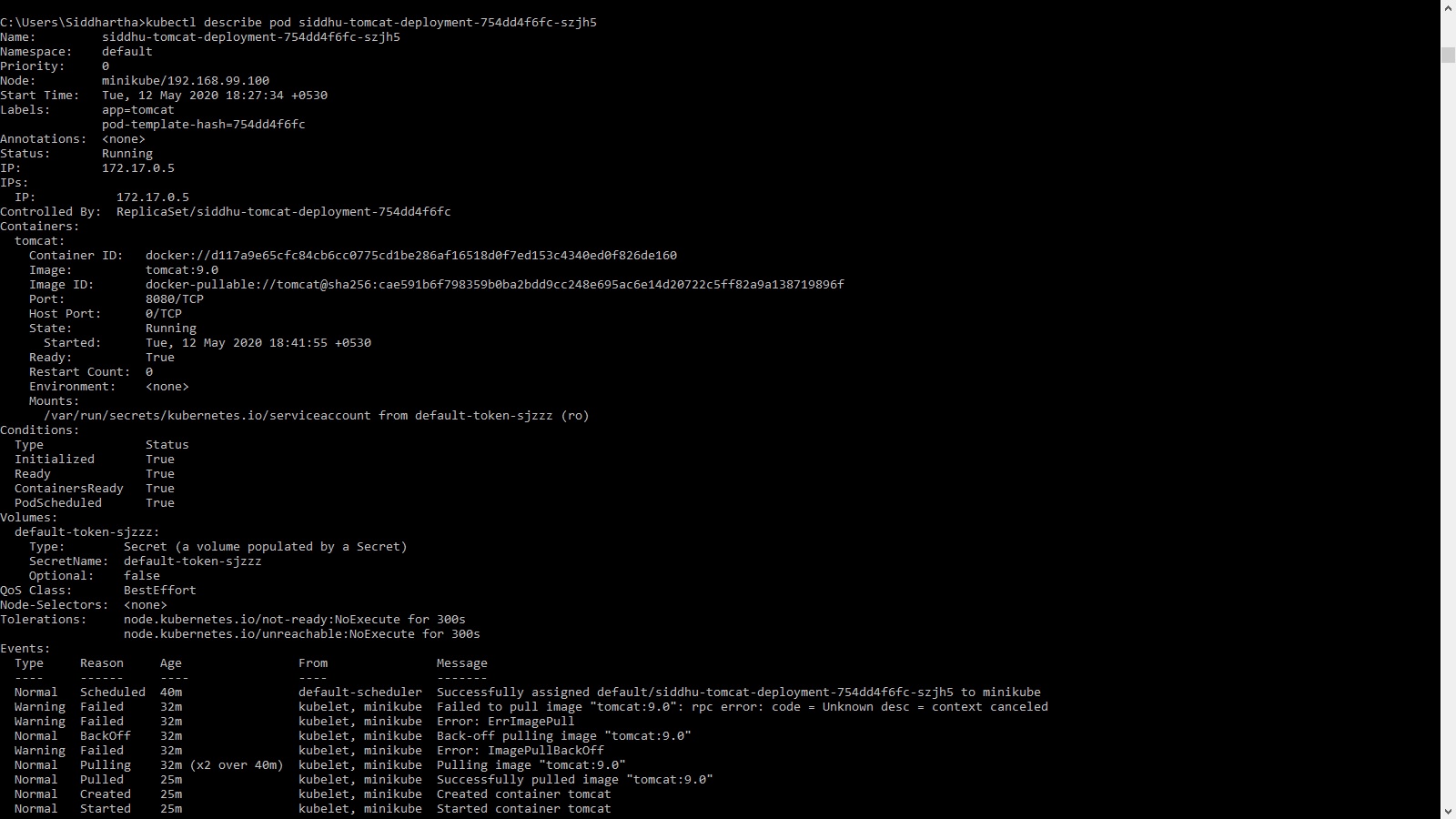
Please make sure to check the status of the container using
kubectl get pod
Image4Image5Image6Image7
Finally to check if the tomcat is running expose the above in url using below command

To install minikube use this site

https://minikube.sigs.k8s.io/docs/start/

and download the minikube installer from 

https://storage.googleapis.com/minikube/releases/latest/minikube-installer.exe

3- minikube service siddhu-new-tomcat-deployment --url

Image3
4- check if it is running using curl or browser
For deploying Apache httpd in docker using kubernetes use below deployment,yaml
'- deployment.yaml
apiVersion: apps/v1
kind: Deployment
metadata:
name: httpd-deployment
spec:
selector:
matchLabels:
app: httpd
replicas: 1
template:
metadata:
labels:
app: httpd
spec:
containers:
- name: httpd
image: httpd:2.4.43
ports:
- containerPort: 80

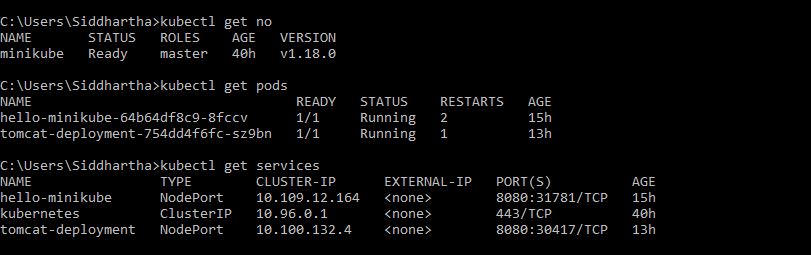
Before Deployment
Image1
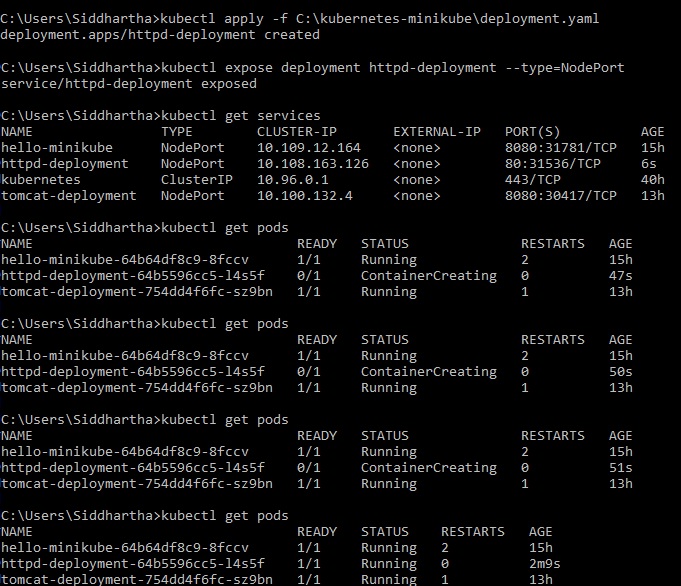
After Deployment
Image2
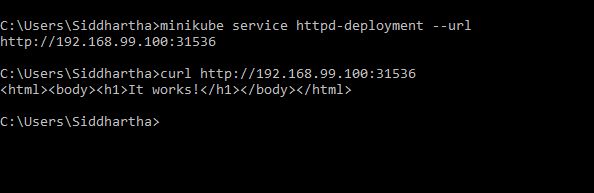
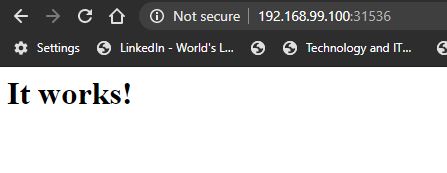
Exposing to url and cheking if the httpd is running

Image3Image4

Note: Important command to get all
kubectl get all
'- And to delete the pod or deployment use
kubectl delete pod/nameofthepod

Minikube with windows for Kubernetes

As we know we have many online site that provide us to work directly on the ready made Kubernetes Cluster created for use i.e. 1 Master node and 1 Worker nodes
Kubernetes Playground:-https://www.katacoda.com/courses/kubernetes/playground
Play with Kubernetes Classroom:- https://training.play-with-kubernetes.com/
Play with Kubernetes :- https://labs.play-with-k8s.com/
Lets go in details and try to setup our own virtual box that contain Kubernetes cluster and that can be done using minikube.
So in short minikube is the tool that work on VM machine and used to create a single kubernetes note i.e. one master and one worker nodes with docer intalled in it. So when we deploy Minikube we get our own kubernetes cluster to work on it.
As we are using windows machine we are going to follow the below given step to setup minikube
Step 1:- Install Minikube Please refer to the below link it has all the step for Windows, Linux and MacOs for minikube installation.
https://kubernetes.io/docs/tasks/tools/install-minikube/
For windows first check you have your Hyper-V Requirement and it has to be set to YES i.e. Virtualization Enabled In Firmware: Yes. You can check this using below command.
systeminfo
If the value is NO go to the bios and set the same.
Step 2:- Install Kubectl
Please refer to the below url
https://kubernetes.io/docs/tasks/tools/install-kubectl/#install-kubectl-on-windows
You can download the exe directly from https://storage.googleapis.com/kubernetes-release/release/v1.18.0/bin/windows/amd64/kubectl.exe
and add it to your path so that it can be access from any cmd prompt. Check using command
kubectl version --client
Kubectl is the tool that is used to execute command to interact with Master node of the Cluster through API server.
Other option is to use chocolatey which is similar to brewhome in MacOS.
https://chocolatey.org/
Use this command to install kubectl using chocolatey
choco install kubernetes-cli
Step 3:- Install a Hypervisor
This is important as we want to run our Minikube on virtual instance. We have two way to do it
• Hyper-V
• VirtualBox
I had used Virtual box concept as i used the same in docker exercise. Download window base virtual machine setup from https://www.virtualbox.org/wiki/Downloads
step 4:- Finally install minikube usind either by choco
choco install minikube

or direclty take the exe from below path
https://github.com/kubernetes/minikube/releases/latest/download/minikube-installer.exe
Step 5:- Start the minikube
To start the minikube we need to use the below command
minikube start
Generally it take the driver automatically but it is better to give the name explicitely so i use this command
minikube start --driver=virtualbox
Please refer to this sites
https://kubernetes.io/docs/setup/learning-environment/minikube/#specifying-the-vm-driver
https://minikube.sigs.k8s.io/docs/drivers/virtualbox/

Image1
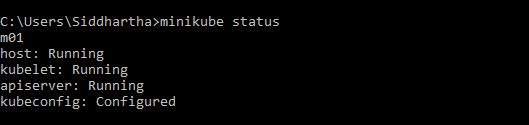
check the status
Image2
Above image state that all the required things in the kubernest is running properly i.e. apiserver of master nodes, kubelets of worked notes etc.
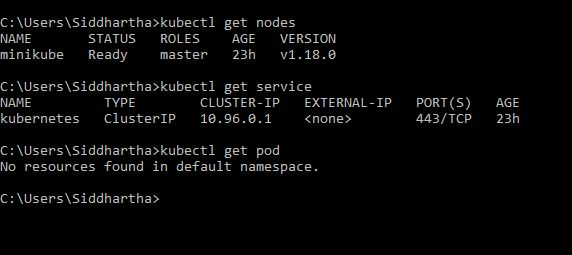
Image3
Above image show it has only one master node and service as kubernetes running but no pod in worker notes.
here at this stage if you run command to check if this container has any service or pod in side it will show empty like below
Now once the minikube gives us the cluster for paying with Kubernetes lets deploy the ready made container/pods from docker in our kubernetes.
Here we are using image named echoserver. Let’s create a Kubernetes Deployment using an existing image named echoserver, which is a simple HTTP server and expose it on port 8080 using --port.

Image4
Now once the deployment is done we need to expose it so that outer system can access it on perticular port for that we need to use below command

Image5
Once we exposed the deployment we had made our pod launced check it using this command

Image6
Finally exposed it using the URL i.e. Get the URL of the exposed Service to view the Service details:

Image7
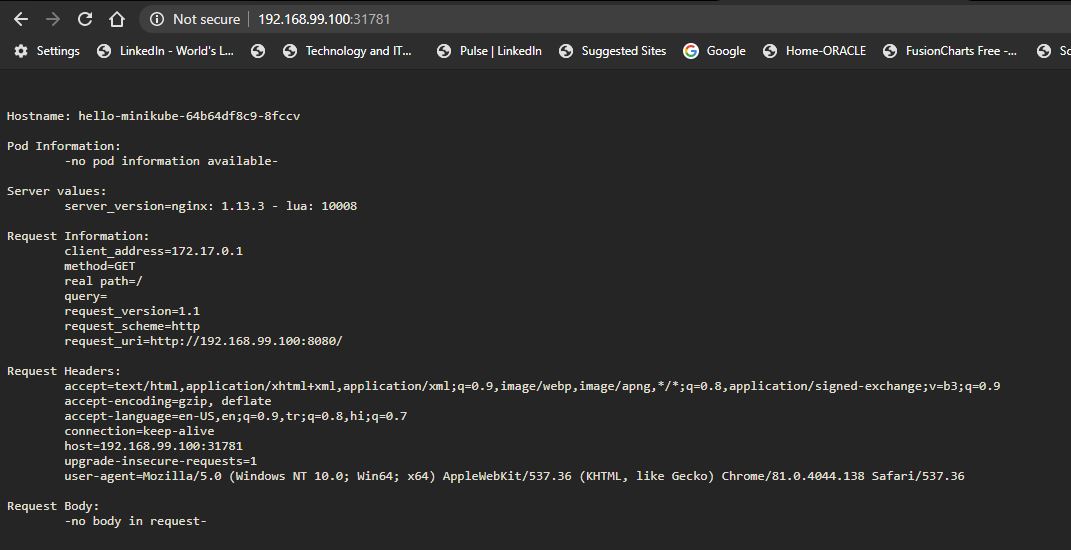
Finally open the url in browser

Image8
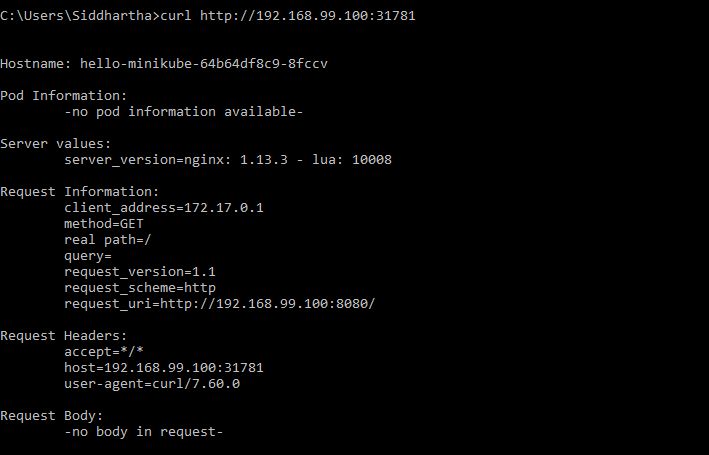
Or consume using curl
Image9

Please also try to execute command like

'- Delete the hello-minikube Service:
kubectl delete services hello-minikube
'- Delete the hello-minikube Deployment:
kubectl delete deployment hello-minikube
'- Stop the local Minikube cluster:
minikube stop
'- Delete the local Minikube cluster:
minikube delete
Now also try to use one the example or container form docker using deployment.yaml and perform the above operation that will give you more details. Take deployment/container of tomcat for better and easy understanding.


Monday, May 11, 2020

Kubernetes concept

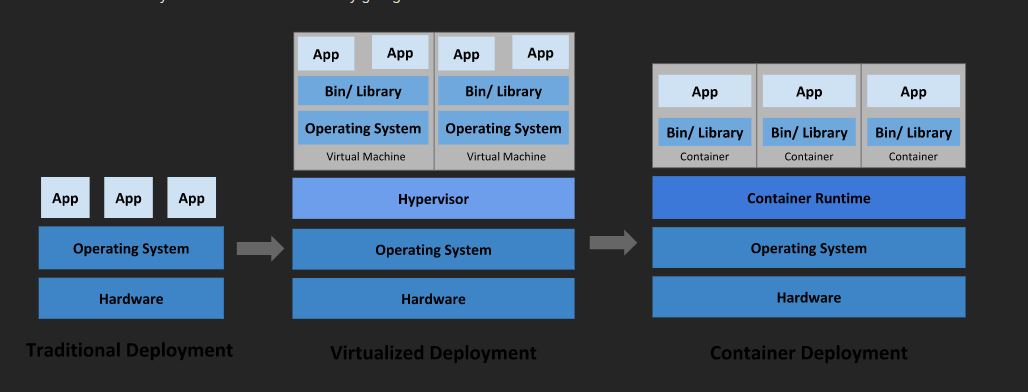
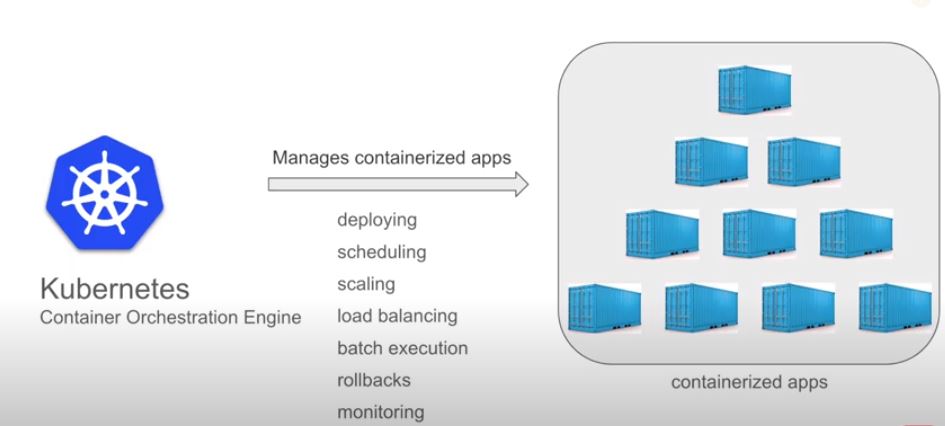
Kubernete is container management tool. This means it is used to manage container. Container manages containerized application which are deployed on them.
We have many container tool available market but the famous one is Docker. So in general Docker create container and Kubernetes manages it.
Kubernetes basically provide function that assist functionality like DSLR-MB -> deployment, scalability , load balancing, roll back, bath processing, monitoring etc.
Few of the fetures of Kubernetes as ASSS-BASH
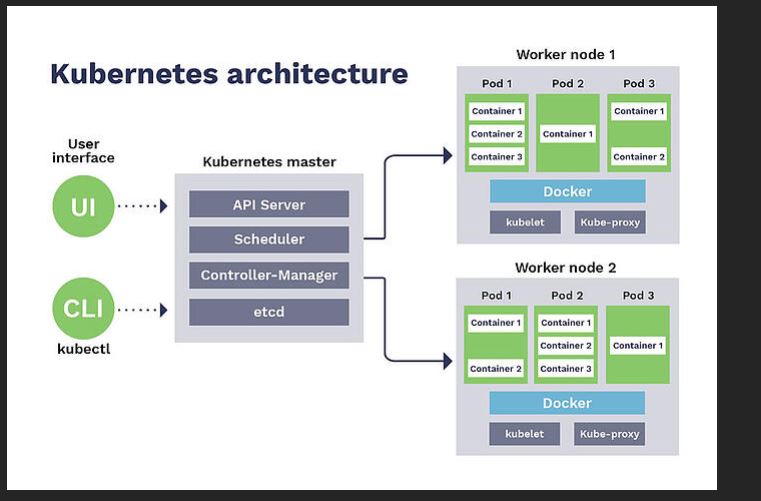
Before understanding this we nee to understand few of the concept of Kubernetes. Kubernetes does not directly work on container it works on its functional unit called as pod which is collection of containers. Each pod as one IP address and small storage unit. This storage unit can be in local system or colud or in File system.

Auto Bin Packaging:-
Kubernetes provide the optional option to the end user to define how much CPU and Memory is required by the container to run. By this way it can adjust the available machine RAM and Memory with efficient way for scaling.
Self Healing :- In this feature Kubernetes check how the node is working. If they are alive or dead if dead then restart it. If nodes not reachable delete it. If needed transfer container and pods to another nodes.
Storage :- This is small storage used in every pods for storing the information.
Servicing and Load Balancing:- Kubernetes make a collection of PODS having similar functionality into one set and provide them a service with DNS name. By doing this it can do the load balancing properly.
Batch processing :- It support the concept of batch processing i.e. where in it create a job having many pods and execute it parallel.
Auto scaling up and scale down :- for this Kubernetes create and destroy the container as on one needed.
Secrete and Configuration :- Secrete and configuration files are maintained outside the node. Secrete store the password and userid and configuration store the configuration items details. Storing out side the nodes make it easier for deployment as we did not need to create another deployment package if the userid/password or configuration changes.
Horizontal scaling:- Looking to the current usage of CPU Kubernetes can create/replica the instance/container this is called auto controller. For that purpose it provide three things .kubectl command tool, from UI and using Auto configuration. There is controller called replica controller which will fetch replica parameter from menifest files and will create and maintain that much pods already.

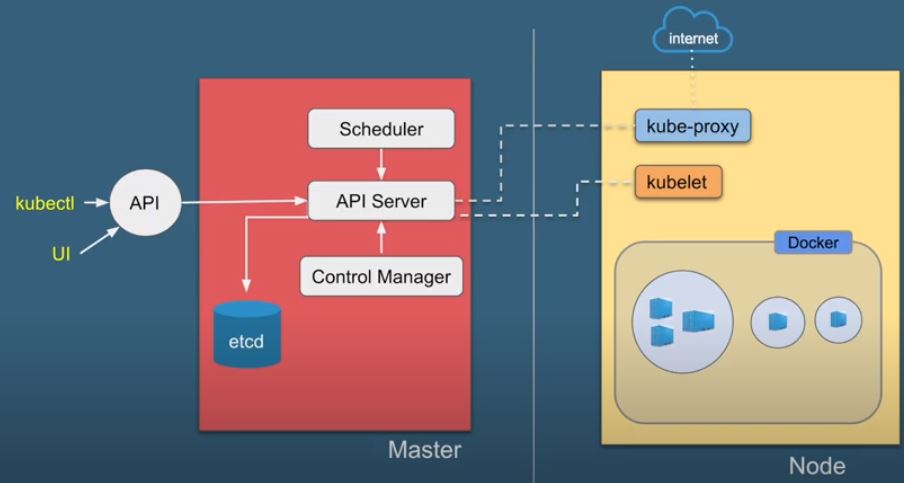
Now lets discuss how the Kubernetes work. As we have team which contain manager that manage the worker in same way we have cluster=team having Master node = manager and worker nodes = worker. when we say we deploy the Kubernetes we define the deploy cluster.
in single cluster we must have at least one master and at least one worker nodes. For scalability Kubernetes handle more than one master and more than one worker nodes in cluster.

Lets understand few of the architect of Kubernets
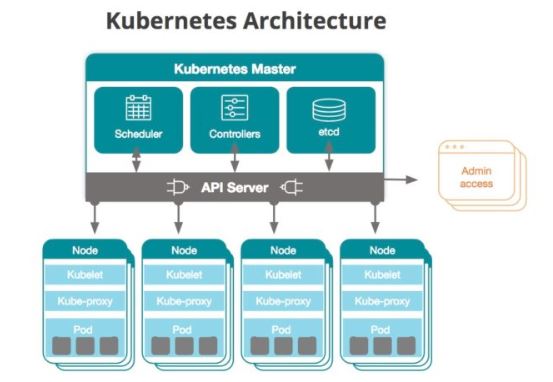
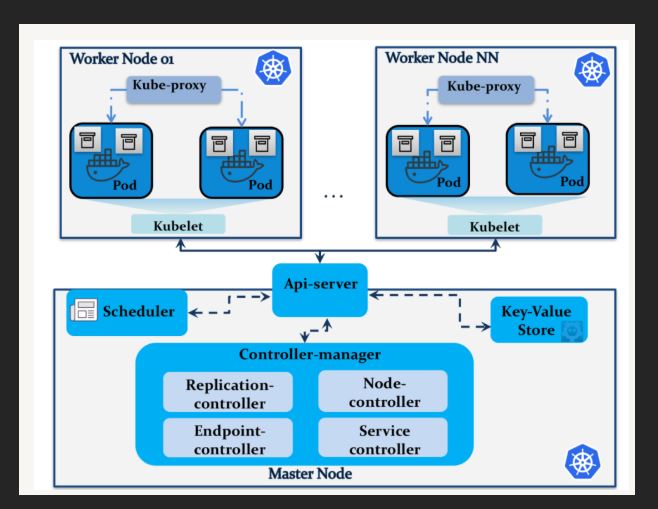
Master Nodes:- It has following part
1- Scheduler :- USe to schedule the pods and nodes.
2- API Server :- USe to communicate with different component of Master i.e. Controller and Schedule.
3- Controller manager:- It main function is to maintain the health of cluster. It check if the pods/container is live or not. If not it either try to restart it or transfer them to another nodes. It check the current status of the cluster with the configuration done in etcd and take appropriate action if needed.
It has controller like
service account :- To maintain account of the user.
End point joint controller :- Deal with communication with service that handle the pods and container.
Replica controller :- Use to maintain minimum number of pods and container.
Node controller: check the status of the pods and container.
4- ETCD - Database to store the information . It is key value data base provided by CoreOS with open source. It store the information that is required for by the Kubernetes to handle the cluster.

Worker nodes:- It has following part
1- Proxy:- This is used to expose the nodes to the out side environment.
2- Kubelet:-This is use to interact with master node using API server.
3- container:- This is the original tool machine on which our container run
Generally Kubernetes allowed to have 5000 notes in a cluster with maximum 150000 pods and 300000 container in a single cluster. Along with this a single pod cannot have more than 100 container .
Few of the diagram to understand it better taken from the source
https://blog.newrelic.com/engineering/what-is-kubernetes/
https://kubernetes.io/docs/concepts/overview/what-is-kubernetes/
https://medium.com/faun/kubernetes-architecture-85ad2999882a
https://blog.sensu.io/how-kubernetes-works
https://automationstepbystep.com/

Image1Image2Image3Image4Image5Image6

Wednesday, May 06, 2020

React Formik with Yup for Validation

Generally in any web application we have an HTML form that contains all the component that is required to be displayed to the user with a purpose of getting some information and capturing the same after validation on screen to send it to the back end system using form submission. ReactJS is a view part of Front end application. In reactJs also we use the form and as usual we do show the user some info and after validation submit the form. But in traditional fashion we have to write huge code with large test case for form submission and validation. React come with 3rd party library called as Formik created by Jared Palmer. You can visit the site https://jaredpalmer.com/formik/
So the question here is why we should use this library when we already have HTML form and submit functionality on button along with validation. I agree but if the same thing can be done with already tested library with less code and easy way ... then why to take hard path ....
Three main reason to use formik is
1- It mangae the state of the data in form.
2- It manage the submission action
3- It elivate and ease the validation process.

So lets start with the implementation first step to install formik in react application. Use below command

npm install formik --save
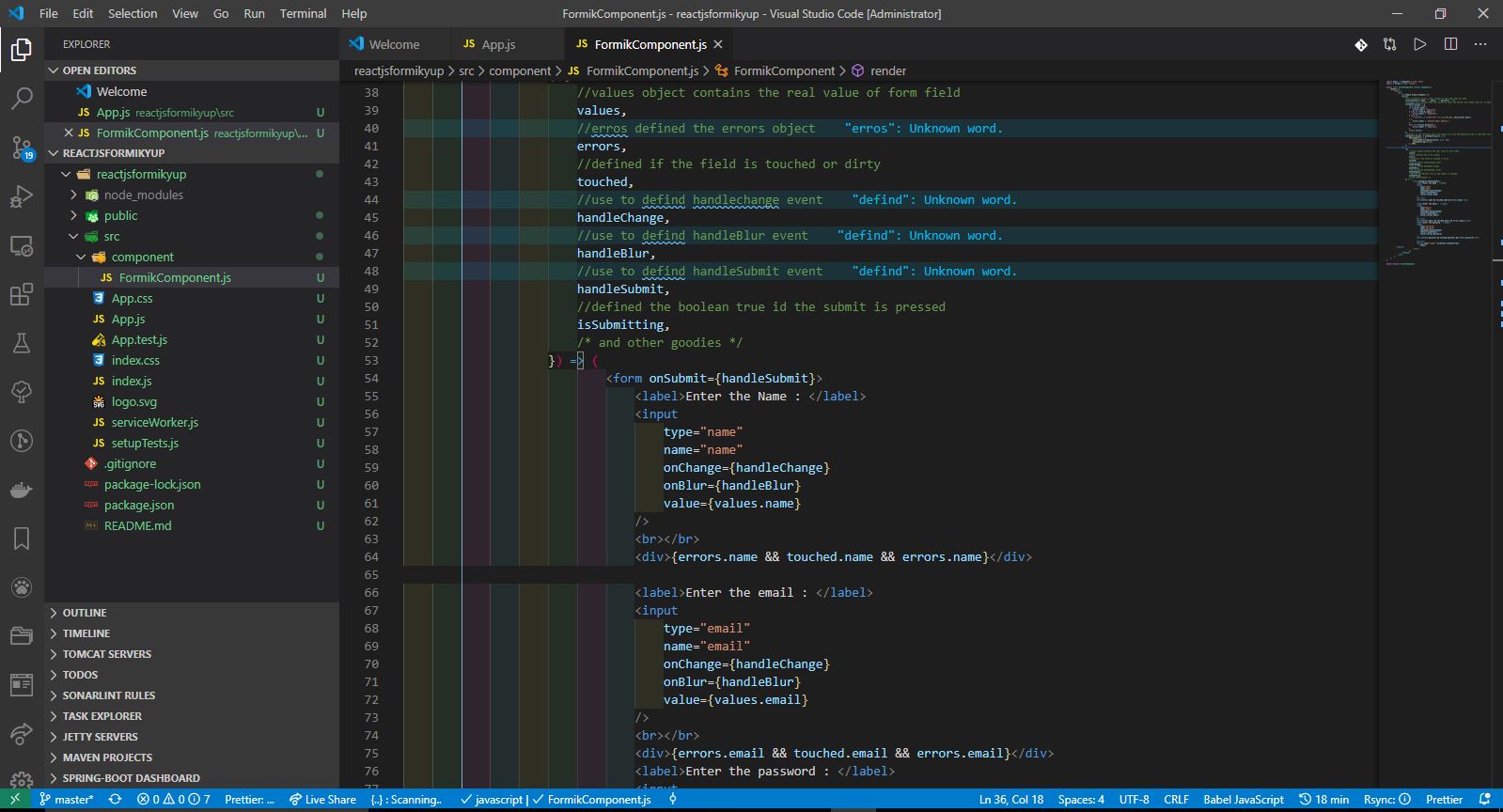
Lets say we have one normal html form having two textfield as name and email id. Now in general ReactJS we need to maintain their state using state object in class or using useState hook in function. Additional if we want to implement onchange or onBlur event handler we need to all method on that specific text field component. With using Formik it keeps track of your form's state along with few reusable methods and event handlers (handleChange, handleBlur, and handleSubmit) to your form via props. handleChange and handleBlur use a name or id attribute to figure out which field to update.

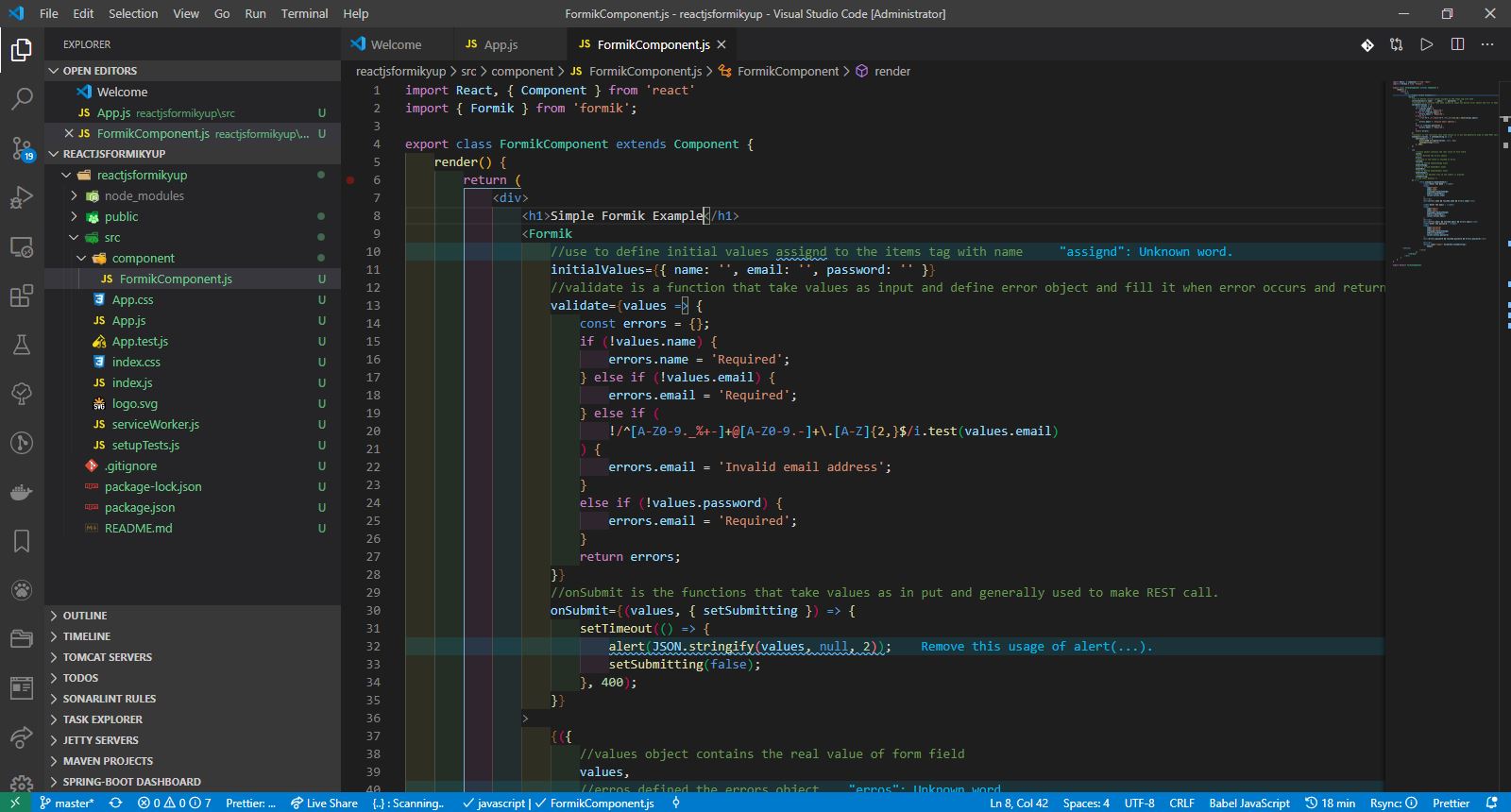
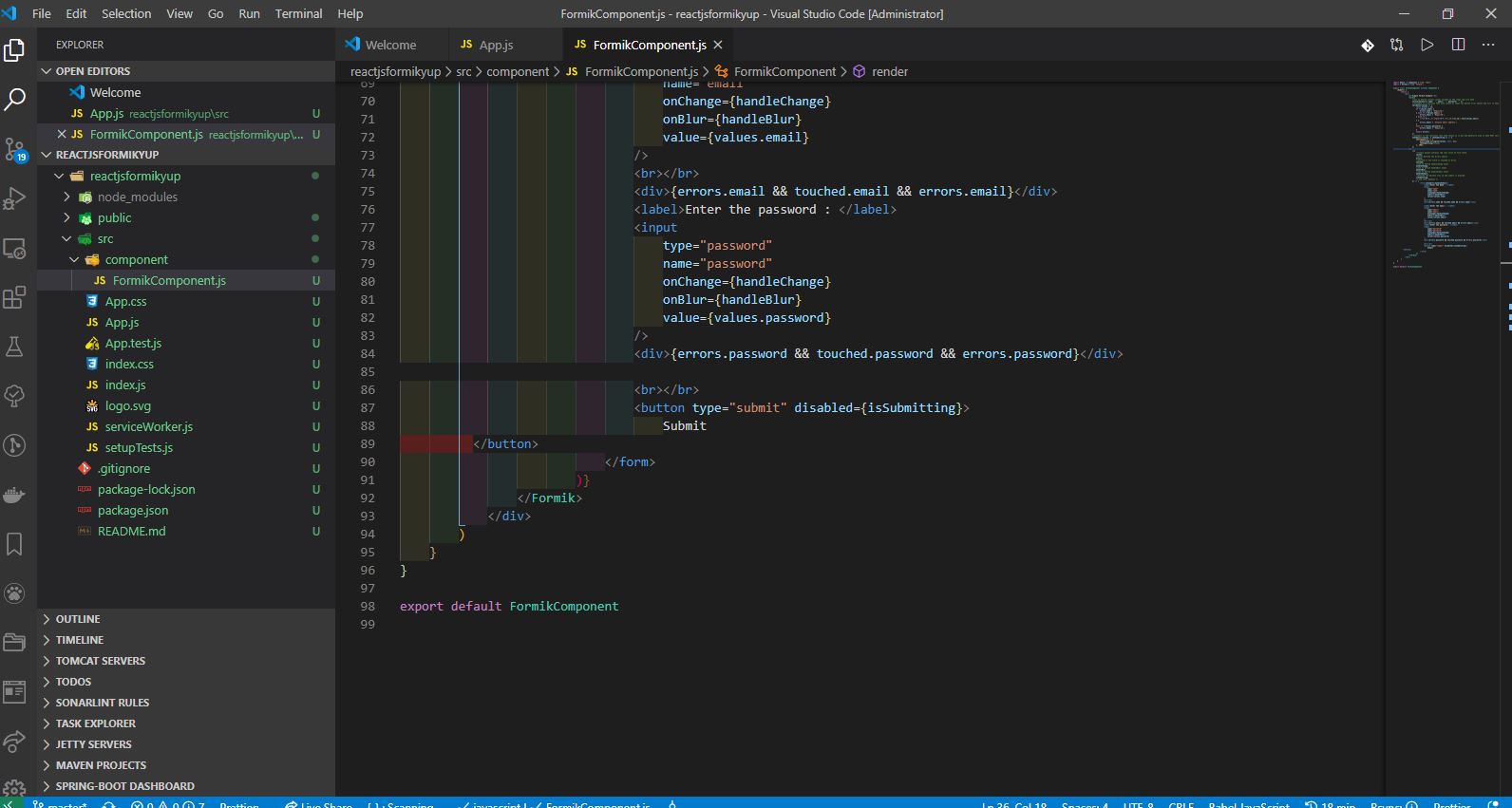
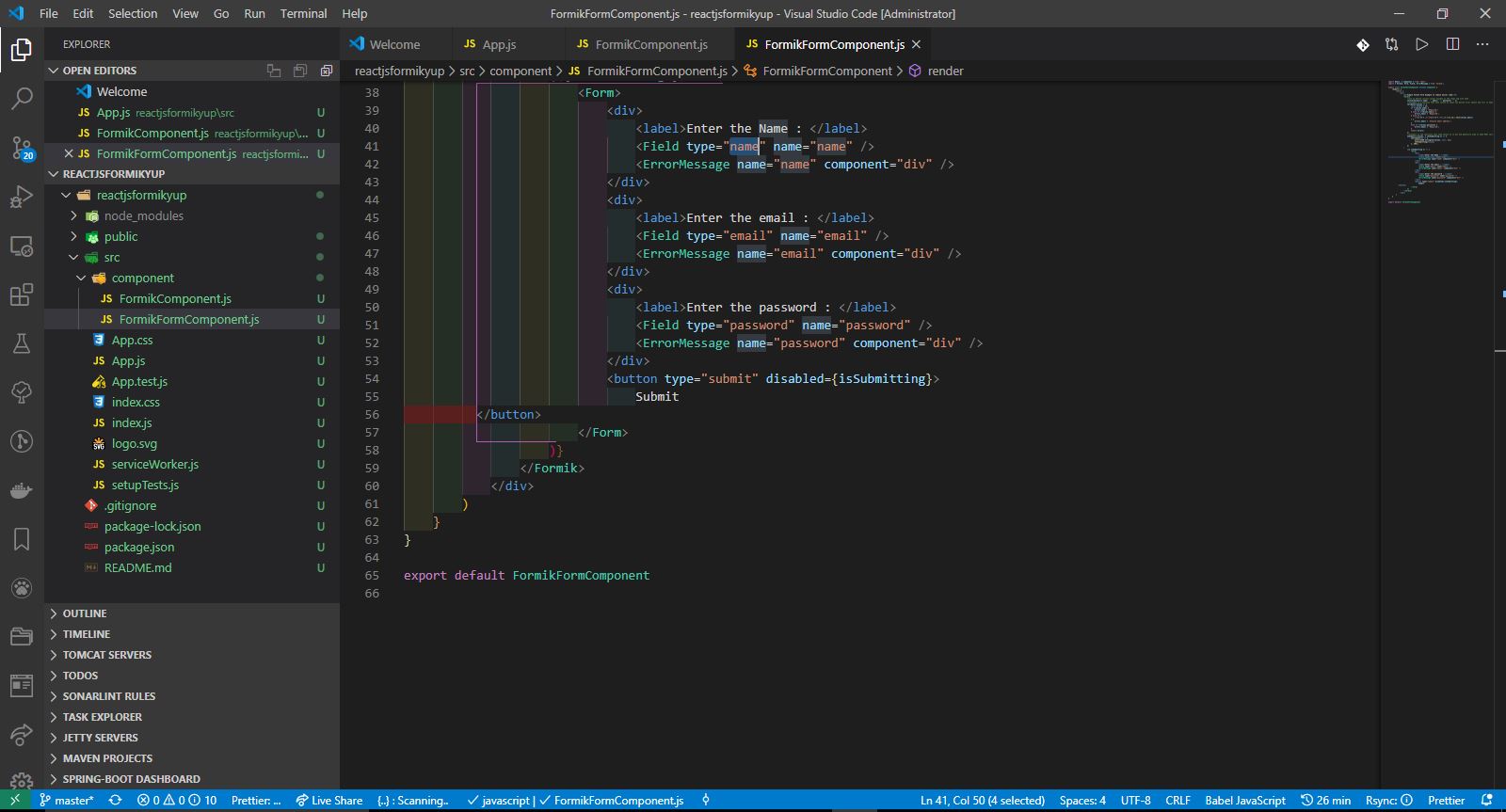
As show below first we need to import Formik from formik to use it. Then we need to bring our whole form inside the formik tag and in formik tag we can define initialValue, validate and onSubmit this represent the above three aspect i.e. manage the state of the data in form , elevate and ease the validation process. and manage the submission action.
One more thing we need to add our html form inside formic using function i.e. {(event handlers) =>(html form)}
All the event handler for formik is mapped with the html methods.
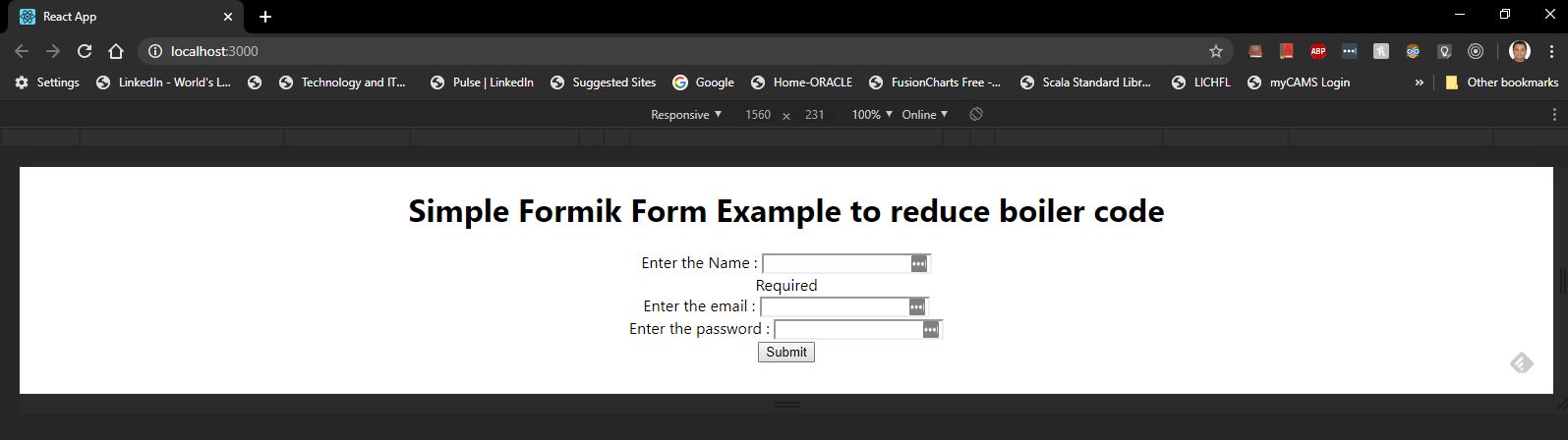
Image1Image2Image3Image4
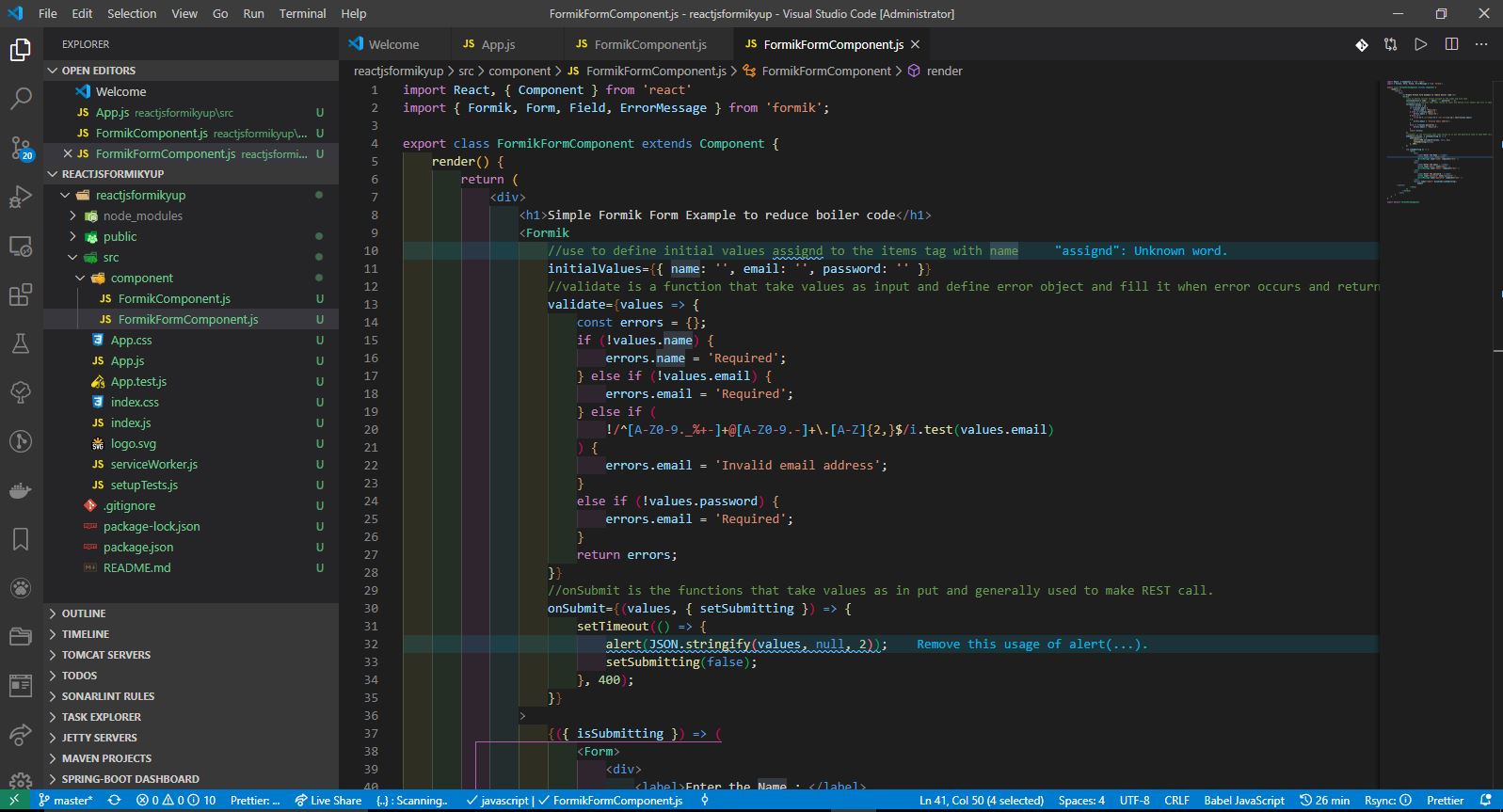
In addition Formik also give us some additional functionality that can reduce our boilerplate. i.e. we explicitly write code for events such as onChange -> handleChange, onBlur -> handleBlur, and so on. Formik comes with a few extra components to do the same i.e. <Form />, <Field />, and <ErrorMessage />. They use React context to hook into the parent <Formik /> state/methods.
Image5Image6Image7
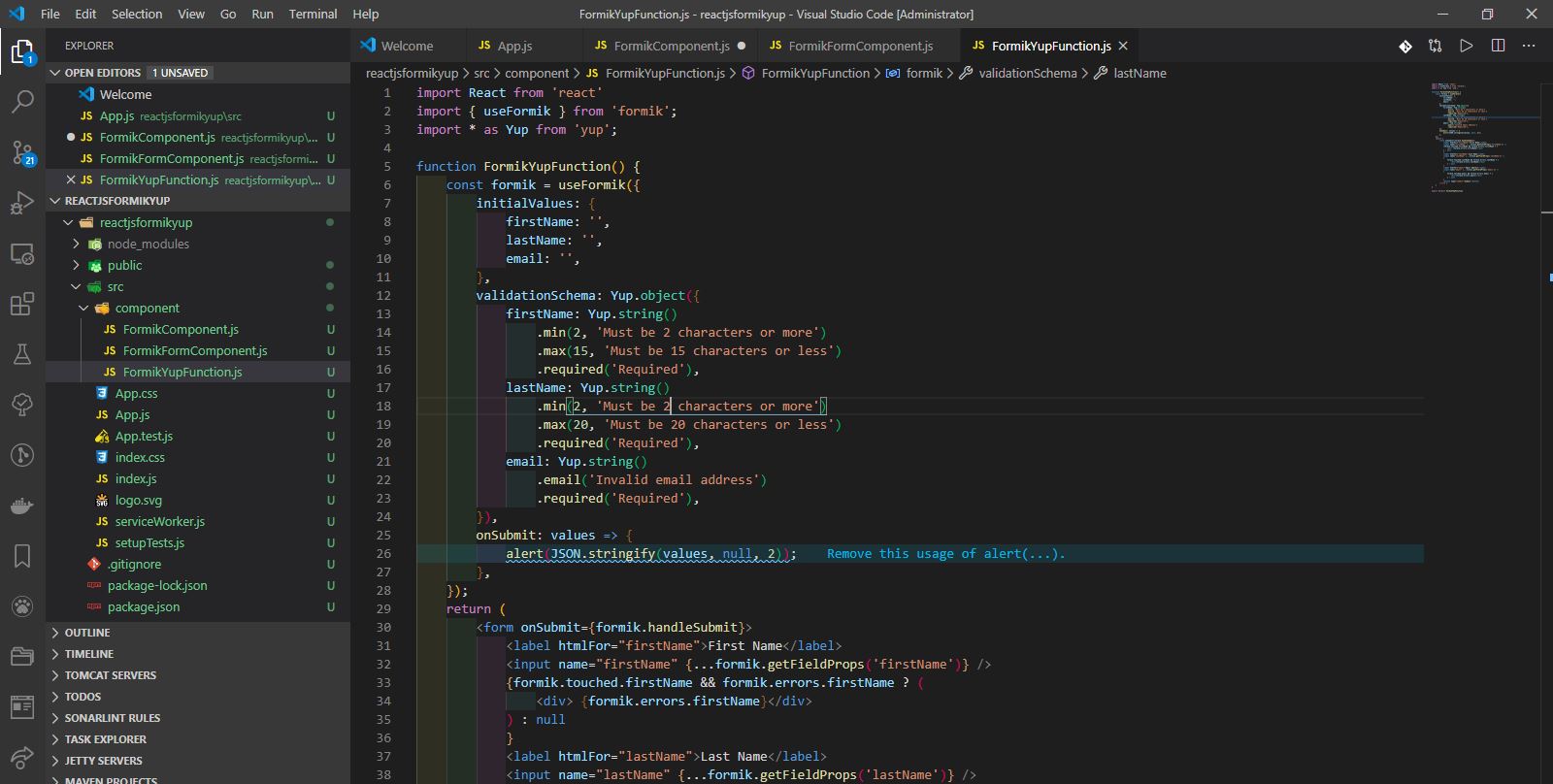
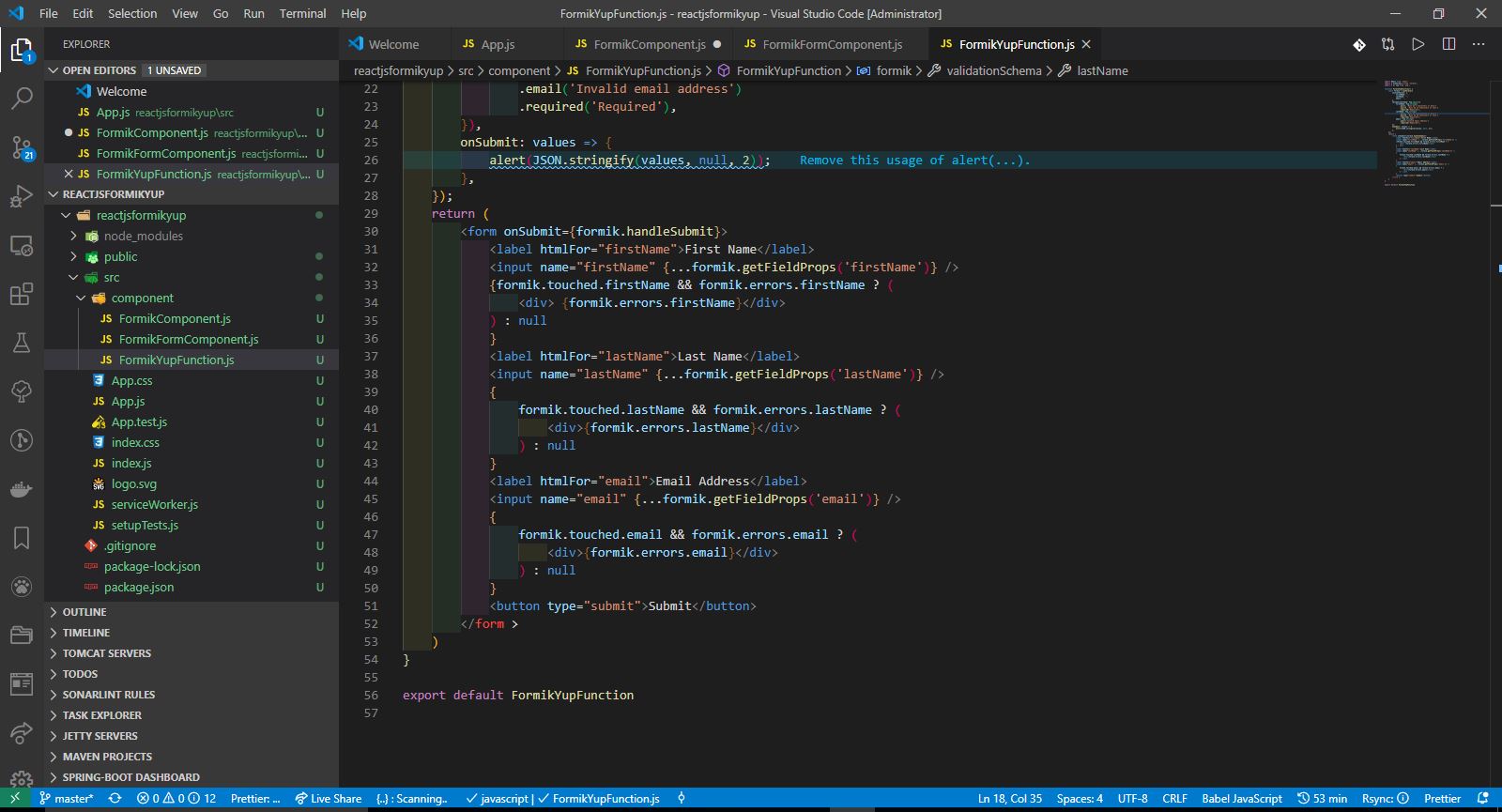
Now in above both the example you have seen that form internal component state, submission and validation are done using formik library. But still validation is done using the old fashion. Developer has to write the code and test it properly. How if we get he ready made library the do the already tested validation for us and in yes .. for this we are using yup package. So lets first install it using command
npm install yup --save
Lets this time use the useFormik as hook in functional component to introduce formik in the form rather than Formik as an component/render-prop in class that we had done in above two examples.
Image8Image9Image10
Note: Get the running code from Git
https://github.com/shdhumale/reactjsformikyup

Wednesday, April 29, 2020

React Flux with Simple Example

React Java script build by facebook for view part of the MVC. This means it itself did not give or suggest you any frame work to incorporate like Angular which comes with inbuild Framework to build an application. Having said this it becomes important to have a fram work to follow religiously so that project maintainability and scalability can be addressed in long term goal. As in long time after working with any application if no frame work is maintained it will be the main cause of failure along with hard to maintain and understand the project.
Flux is another open source Frame work provided by Facebook and suggested to use in React. As we have MVC framework in java application explained below
Controller :- This is the central hub of the MVC framework. It acts as an intermediate between model and view. Generally we always have one controller per application. Its main function is to handle all the request from the view in terms of action. Controller decide what to do with data either to send it to view part for showing to the user or it need to go to model to perform some DB or REST call.
View :- This represent the view part of the application and never talk directly with Model. It has to go through controller.
Model :- This represent the data that is coming from Controller. It never talk directly with View. It either take data from Controller and perform W/S or DB call or take the data from DB or REST and give to controller by informing to provide it to view for rendering.
Action --> Controller
| |
View Model

Flux is also similar to MVC but unidirectional. It has following part
Action --> Dispatcher --> Store -->View
Lets discuss few of the aspect of all describe above
'- Action send the action using dispatch to dispatcher
'- Dispacther take the action and send the data and action type to store
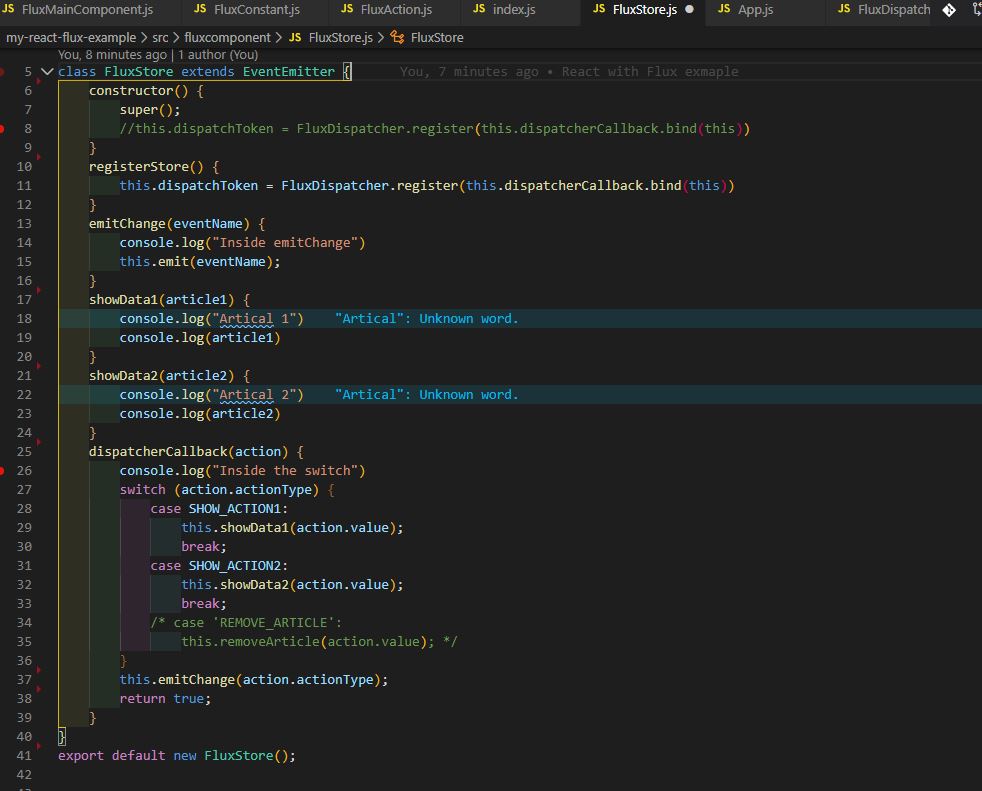
'- store responds to the dispatched action using register, switch and case.
'- Store finally emits change to view and view update as per the need.
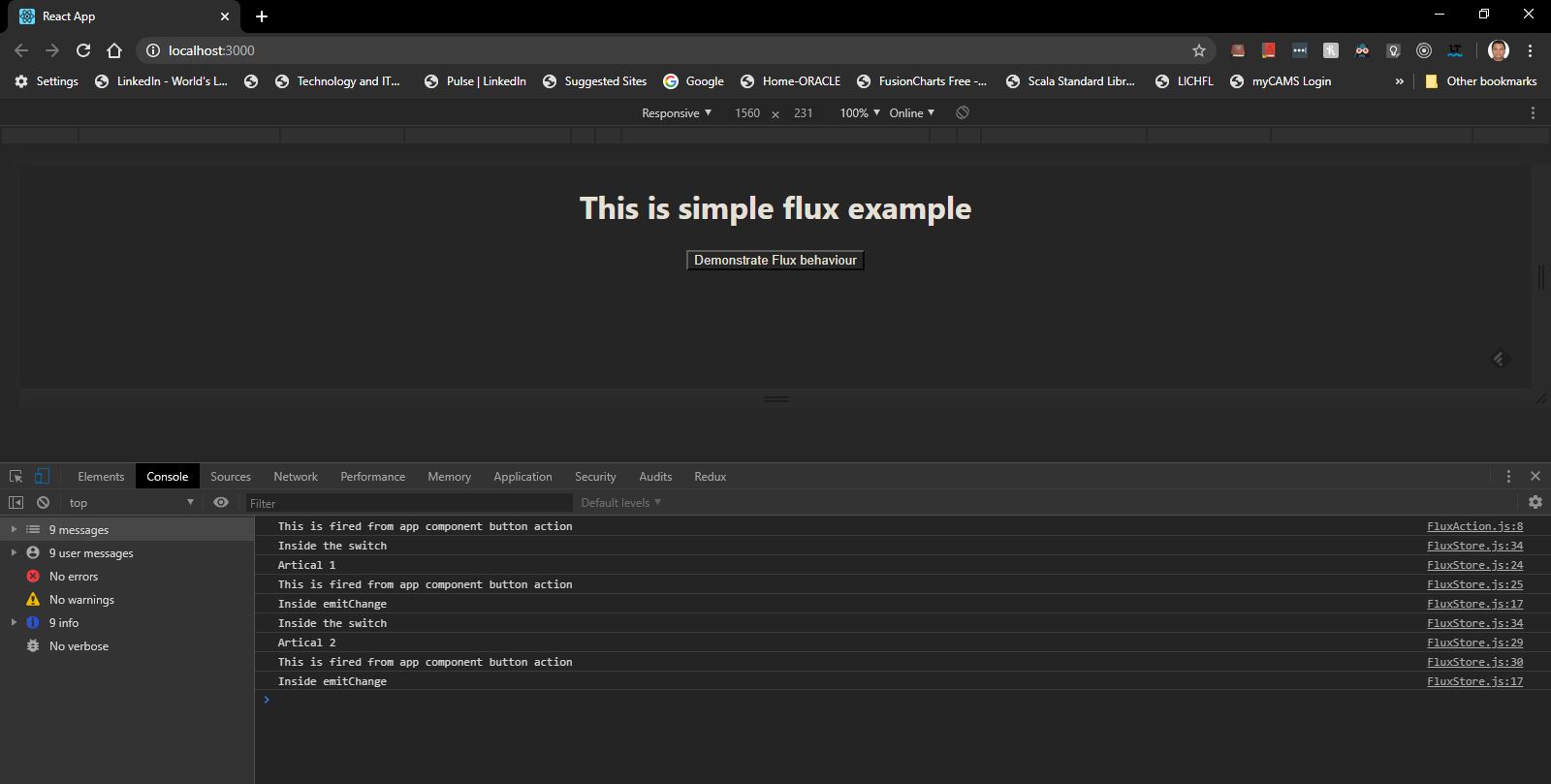
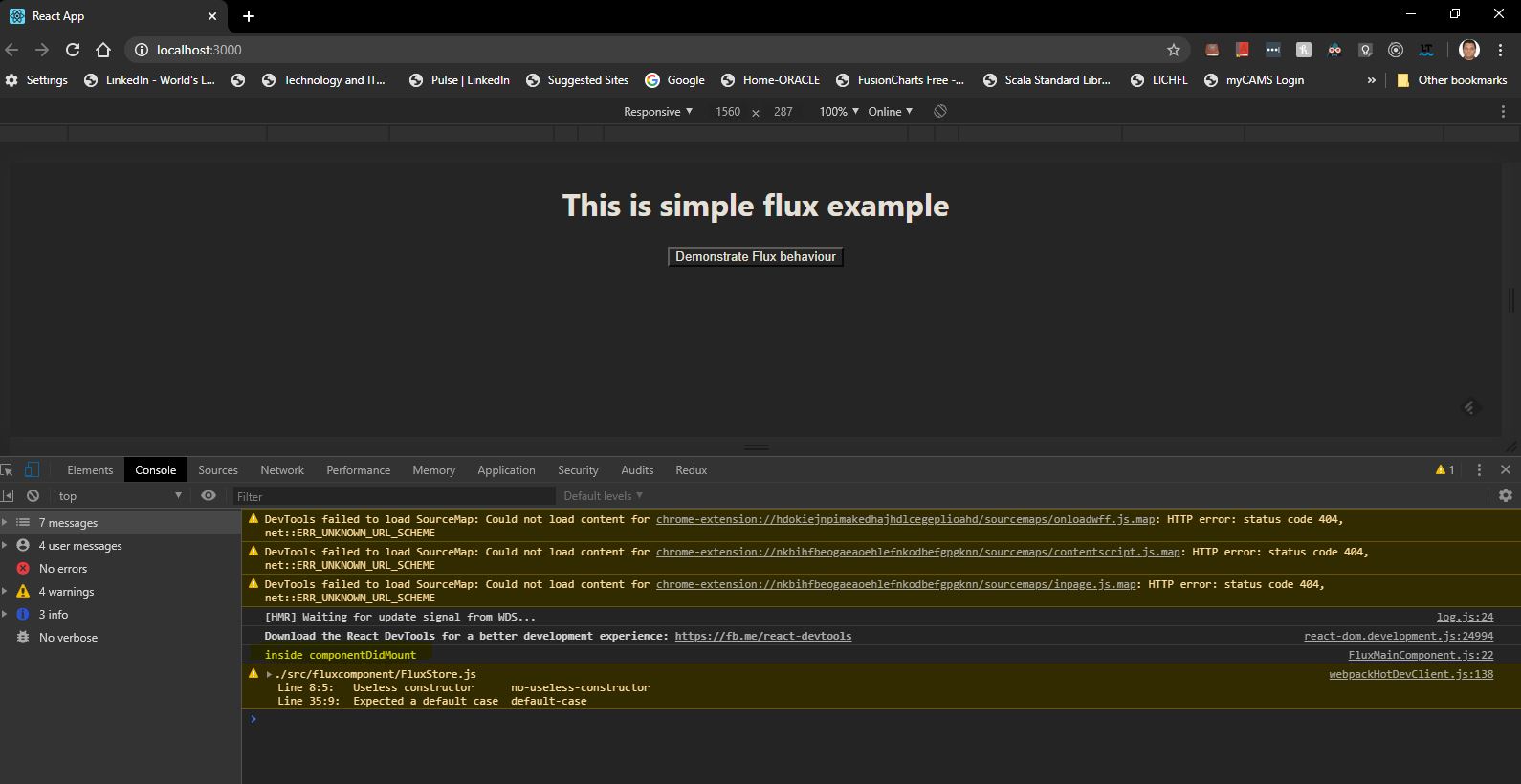
In short user perform the action i.e. clicking on button this action is send to Action class which call the Dispacther class by sending the action type (to differentiate different action) and data and then dispatcher using dispatch this action and data to all the store who has already register them self with this dispatcher. Finally when the data is taken by the store class it perform the operation and send event to View to do changes.
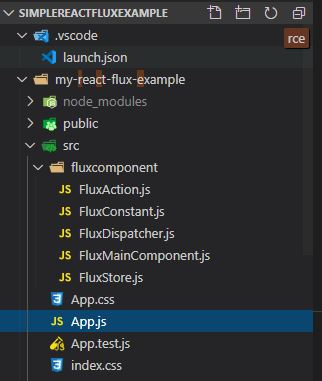
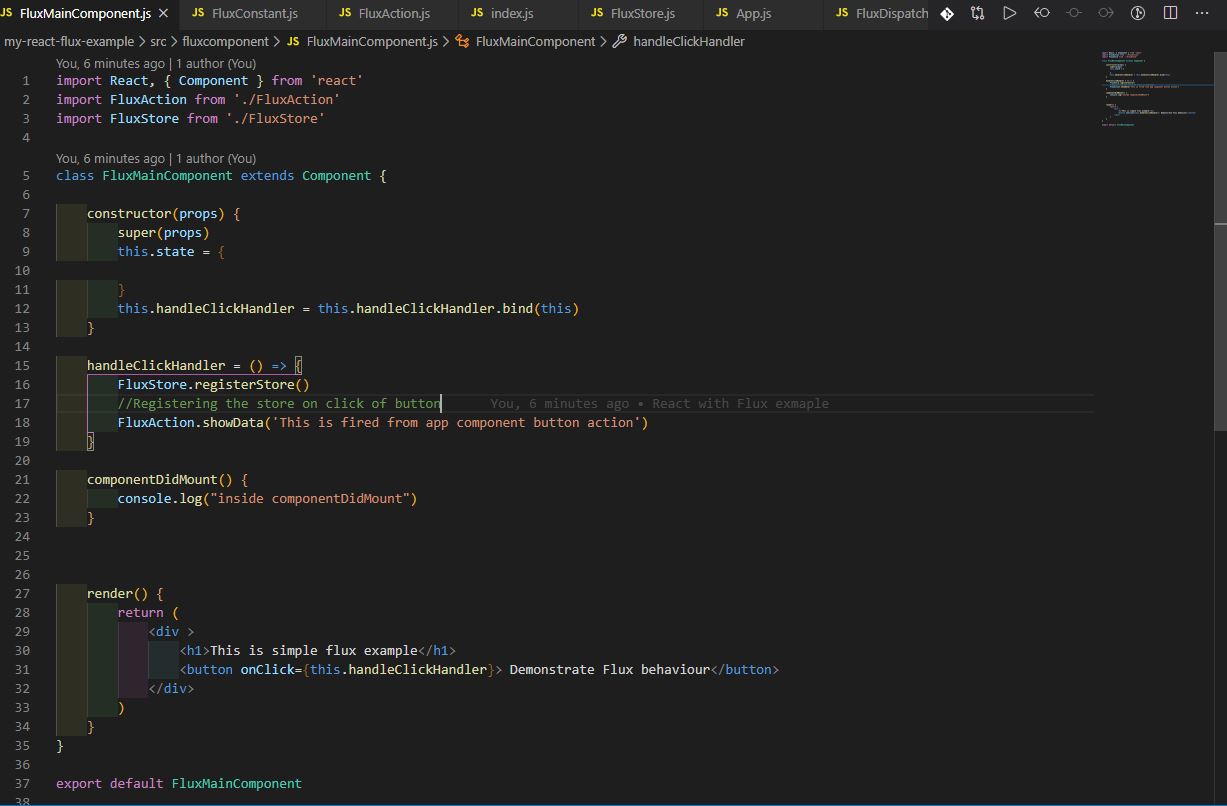
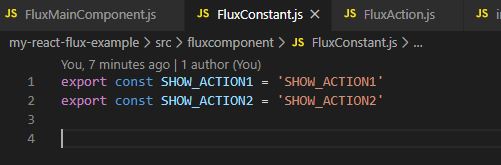
Please refer to the working code as given below

You can also download the code from URL

https://github.com/shdhumale/SimpleReactFluxExample


Folder structure

Iamge1Iamge2Iamge3Iamge4Iamge5Iamge6Iamge7Iamge8Iamge9

Thursday, April 16, 2020

Redux Library and its uses in Java Script

Redux is the third party extension that can be used for any Java script application as third party library.It act as a predictable state container .
Following are the important aspect of the Redux
-> SAR - MA :-
'- Store :- store the state of the Application. Means every application must have single state to be store,
'- Action :- indicate what need to be done with the state which is readonly. Your application must tell redux through/by firing the action to redux from your application telling what need to be done with the state. No Direct update is avaialble,
'- Reducer:- Actully carrier out the change in the state. i.e. we need to write the code in reducer (pure function that teake prevState and action as input) and change the new state depending. so how the state is transfer is depending on this reducer.
In short our application subscribe to redux, it store its state in redux, It cannot change the state directly it has to emit/dispath the action which is given to reducer which is pure function depending on the action type it will modify the state and then redux inform/send the new state to our application as it is subscribed.
'- Store :- CGSD - Create store , Getstate - to get the state of the application, susbcribe(listener) for subscrbing and unsubscribing the listener as the state change and dispatch(action) is used to make change in state in the store.
'-MiddleWare :- It is 3rd party extension act between dispatching the action and receving to reducers. It can be used for log, crash reporting, performing async task etc.
'-Asyn Action :- this is generally achieved using Thunk external library in Redux. It help us to get the action creater to return function instead of action object.
Let take an example or Use case
SAR - State (Data + Error + Loading) , Action (User request, User error, User succssess), Reducer funtion (User request => loading=true, User error => loading = false, error=true , User success =>loading = true, data=User) use axios and thunk(as middleware)
Code As given below
//We are using Axios and Thunk for making REST call using Redux
//As per process we will first follow this three steps
//1- create ActionInitiator
//2- Create Reducers that take state = InitialState and Action as parameters
//3- Create Store
//Our requirement is 1- Mak a ASync Rest call 2- Till the call is working keeping loading parameter true 3- On success (a) keeping loading parameter true and (b) fill the data 4- on error (a) keeping loading parameter true (b)) fill the error with message and (c) make/set the data error as empty
//SAR => I-AIR -ST => CGSD (Store - Action-Reducer => InitialState, Action, ActionInitiator, Reducer, Store - [Createstore, getstate, subscribe, dispatchaction, unsubscribe], thunk Async Function) -
const redux = require("redux")
const applyMiddleware = redux.applyMiddleware
const reduxThunk = require("redux-thunk").default
const axios = require("axios")
//1- Declare initialState
const initialState = {
loading: false,
users: [],
error: ''
}
//2- Create Action
const USER_REQUEST = "USER_REQUEST"
const USER_SUCCESS = "USER_SUCCESS"
const USER_ERROR = "USER_ERROR"
//3- Create Action Initiators
const fetchUserRequest = () => {
return {
type: USER_REQUEST
}
}
const fetchUserSuccess = (users) => {
return {
type: USER_SUCCESS,
payload: users
}
}
const fetchUserError = (error) => {
return {
type: USER_ERROR,
payload: error
}
}
//4- Create Reducers
const reducer = (state = initialState, action) => {
switch (action.type) {
case USER_REQUEST: return {
...state,
loading: true
}
case USER_SUCCESS: return {
loading: false,
users: action.payload,
error: ''
}
case USER_SUCCESS: return {
loading: false,
users: [],
error: action.payload
}
}
}
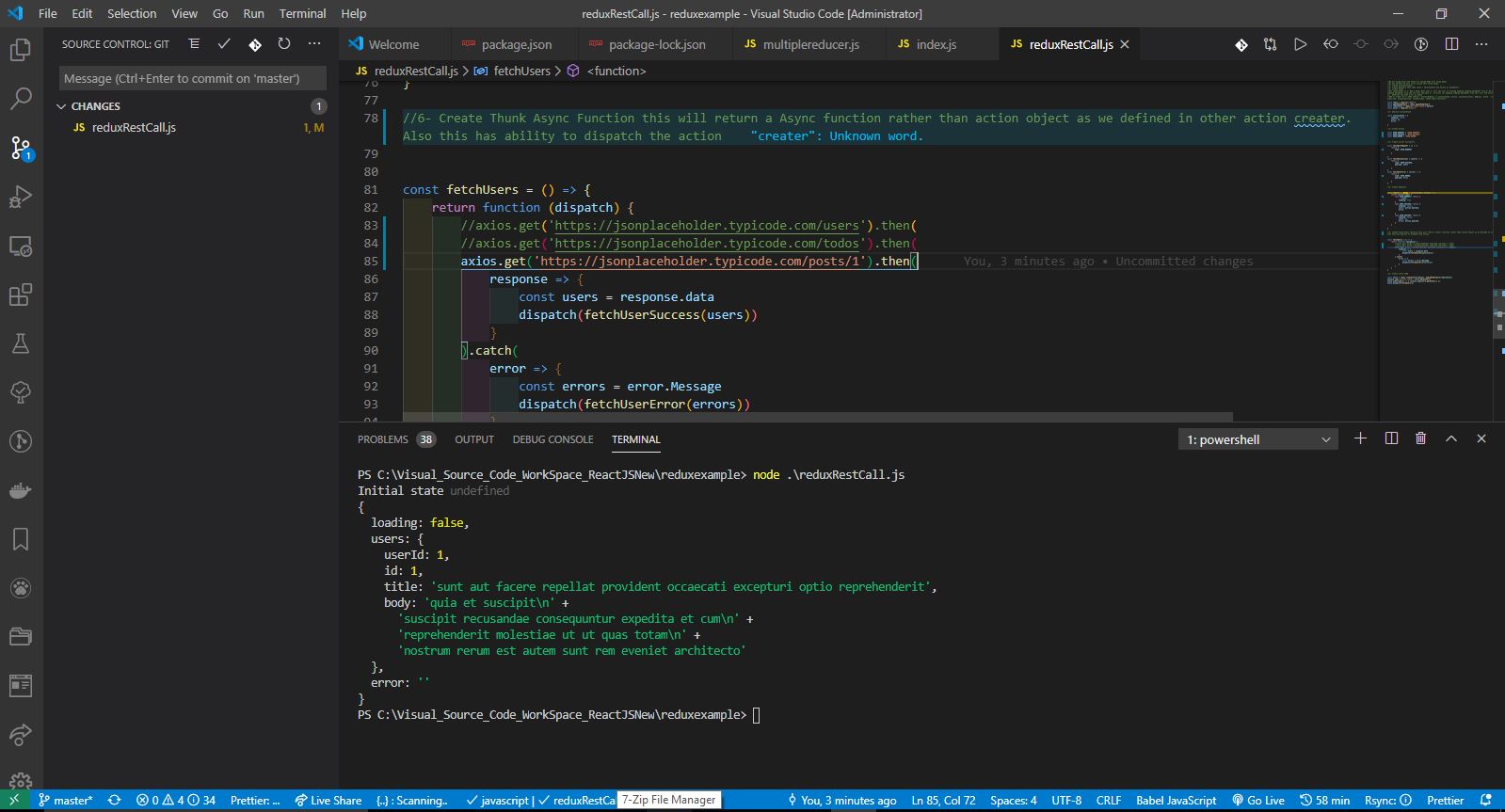
//6- Create Thunk Async Function this will return a Async function rather than action object as we defined in other action creater. Also this has ability to dispatch the action
const fetchUsers = () => {
return function (dispatch) {
//axios.get('https://jsonplaceholder.typicode.com/users').then(
//axios.get('https://jsonplaceholder.typicode.com/todos').then(
axios.get('https://jsonplaceholder.typicode.com/posts/1').then(
response => {
const users = response.data
dispatch(fetchUserSuccess(users))
}
).catch(
error => {
const errors = error.Message
dispatch(fetchUserError(errors))
}
)
}
}
//5- Create store CGSD
const store = redux.createStore(reducer, applyMiddleware(reduxThunk))
console.log('Initial state', store.getState())
store.subscribe(() => { console.log(store.getState()) })
store.dispatch(fetchUsers())

Redux1

Thursday, March 26, 2020

Mockito with Example

During unit testing of the application manytimes it is not possible to replicate exact production environment or to connect DB it become difficult to do the unit testing. To deal with such limitations Mockitto provide api to create mock for these unavailable resources.Mockito is a mocking framework that tastes really good. It lets you write beautiful tests with a clean & simple API. It is open source https://site.mockito.org/ and code can be downloaded from https://github.com/mockito/mockito

Few of the below example gives you details how we can use the concept in real world
1- SiddhuAddServiceTest
package siddhuetheremwebexample.Mockito;
import static org.junit.Assert.assertEquals;
import static org.mockito.Mockito.times;
import static org.mockito.Mockito.verify;
import static org.mockito.Mockito.when;
import org.junit.Before;
import org.junit.Test;
import org.junit.runner.RunWith;
import org.mockito.InjectMocks;
import org.mockito.Mock;
import org.mockito.MockitoAnnotations;
import org.mockito.Spy;
import org.mockito.junit.MockitoJUnitRunner;
//Refer to https://javacodehouse.com/blog/mockito-tutorial/ for more example.
//1- to add @RunWith(MockitoJUnitRunner.class) so that inner mock class object is created first.
@RunWith(MockitoJUnitRunner.class)
public class SiddhuAddServiceTest {
//use to call the original function rather then mockup.
@Spy
SiddhuAddServiceImpl objSpyAddServiceImpl;
//2- This is the place till where we want our code to be executed and rest code after this class need to be mocked.
@InjectMocks
SiddhuAddService objSiddhuAddService;
//3- this indicate which class need to be mocked. Generally it should be the all class/interface object which we are creating in @InjectMocks class
@Mock
SiddhuAddServiceInterface objSiddhuAddServiceInterface;
//4-This will indicate method/function from where junit will be executed.
//we can also use the below method to initialize mocks if we did not want to do with line 1-
/*
* @Before public void setUp() throws Exception {
*
* MockitoAnnotations.initMocks(this); }
*/ @Test
public void testSiddhuCalc() {
System.out.println("Test testSiddhuCalc Started");

//we have done mock using annotation above at 3- above method else we can also do the mock like below inside the method.
//addService = Mockito.mock(AddService.class);
objSiddhuAddService = new SiddhuAddService(objSiddhuAddServiceInterface);
int oneNum = 5;
int secondNum = 6;
int expected = 11;
//5-As we had said in 3 that objSiddhuAddServiceInterface are mocked then we need to make sure it should return mock value when ever it is called.
when(objSiddhuAddServiceInterface.addMethod(oneNum, secondNum)).thenReturn(expected);
//this will check addService add method is called depending on times(). As it is times(0) this means it is never called as it is mocked.
verify(objSiddhuAddServiceInterface, times(0)).addMethod(oneNum, secondNum);
//Here we called the real calc method of calcService which call addService.add(num1, num2); but as it is mocked and written in 5- we will always
//expected value as output and original call which implement this method AddServiceImpl will never be called.
int actual = objSiddhuAddService.calc(oneNum, secondNum);
assertEquals(expected, objSpyAddServiceImpl.addMethod(oneNum, secondNum));
// verify(objSpyAddServiceImpl).add(num1, num2);
assertEquals(expected, actual);
}
}

2-SiddhuAddServiceInterface
package siddhuetheremwebexample.Mockito;
public interface SiddhuAddServiceInterface {
public int addMethod(int oneNum, int secondNum);
}
3- SiddhuAddService
package siddhuetheremwebexample.Mockito;
public class SiddhuAddService {

private SiddhuAddServiceInterface objSiddhuAddServiceInterface;

public SiddhuAddService(SiddhuAddServiceInterface objSiddhuAddServiceInterface) {
this.objSiddhuAddServiceInterface = objSiddhuAddServiceInterface;
}
public int calc(int num1, int num2) {
System.out.println("**--- SiddhuAddService calc executed ---**");
return objSiddhuAddServiceInterface.addMethod(num1, num2);
}
}

4-SiddhuAddServiceImpl
package siddhuetheremwebexample.Mockito;
public class SiddhuAddServiceImpl implements SiddhuAddServiceInterface {
public int addMethod(int oneNum, int secondNum) {
System.out.println("----------------SiddhuAddServiceImpl addMethod called----------------");
return oneNum + secondNum;
}
}
5-POM.xml
<project xmlns="http://maven.apache.org/POM/4.0.0"
xmlns:xsi="http://www.w3.org/2001/XMLSchema-instance"
xsi:schemaLocation="http://maven.apache.org/POM/4.0.0 http://maven.apache.org/xsd/maven-4.0.0.xsd">
<modelVersion>4.0.0</modelVersion>
<groupId>siddhuetheremwebexample</groupId>
<artifactId>Mockito</artifactId>
<version>0.0.1-SNAPSHOT</version>
<packaging>jar</packaging>
<name>Mockito</name>
<url>http://maven.apache.org</url>
<properties>
<project.build.sourceEncoding>UTF-8</project.build.sourceEncoding>
</properties>
<dependencies>
<dependency>
<groupId>org.mockito</groupId>
<artifactId>mockito-core</artifactId>
<version>3.3.3</version>
<scope>test</scope>
</dependency>
<dependency>
<groupId>junit</groupId>
<artifactId>junit</artifactId>
<version>4.13</version>
<scope>test</scope>
</dependency>
</dependencies>
</project>

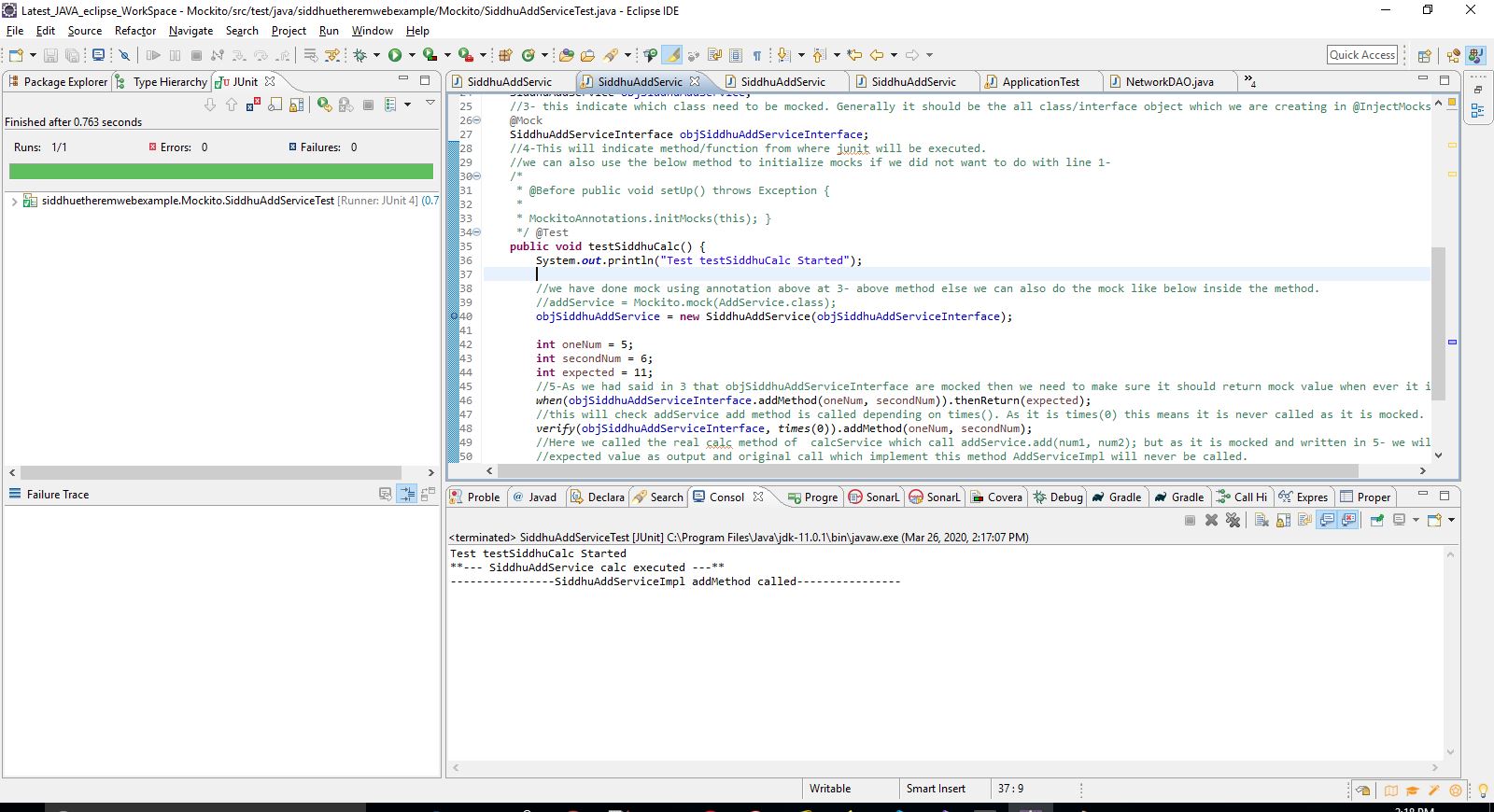
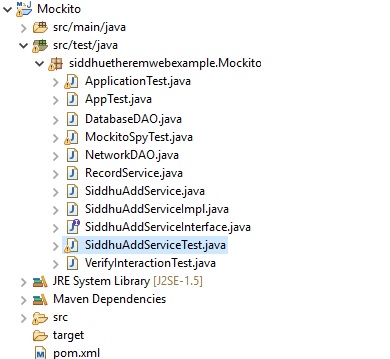
Image2
Image3
One of the good example I found from this site
https://howtodoinjava.com/mockito/junit-mockito-example/
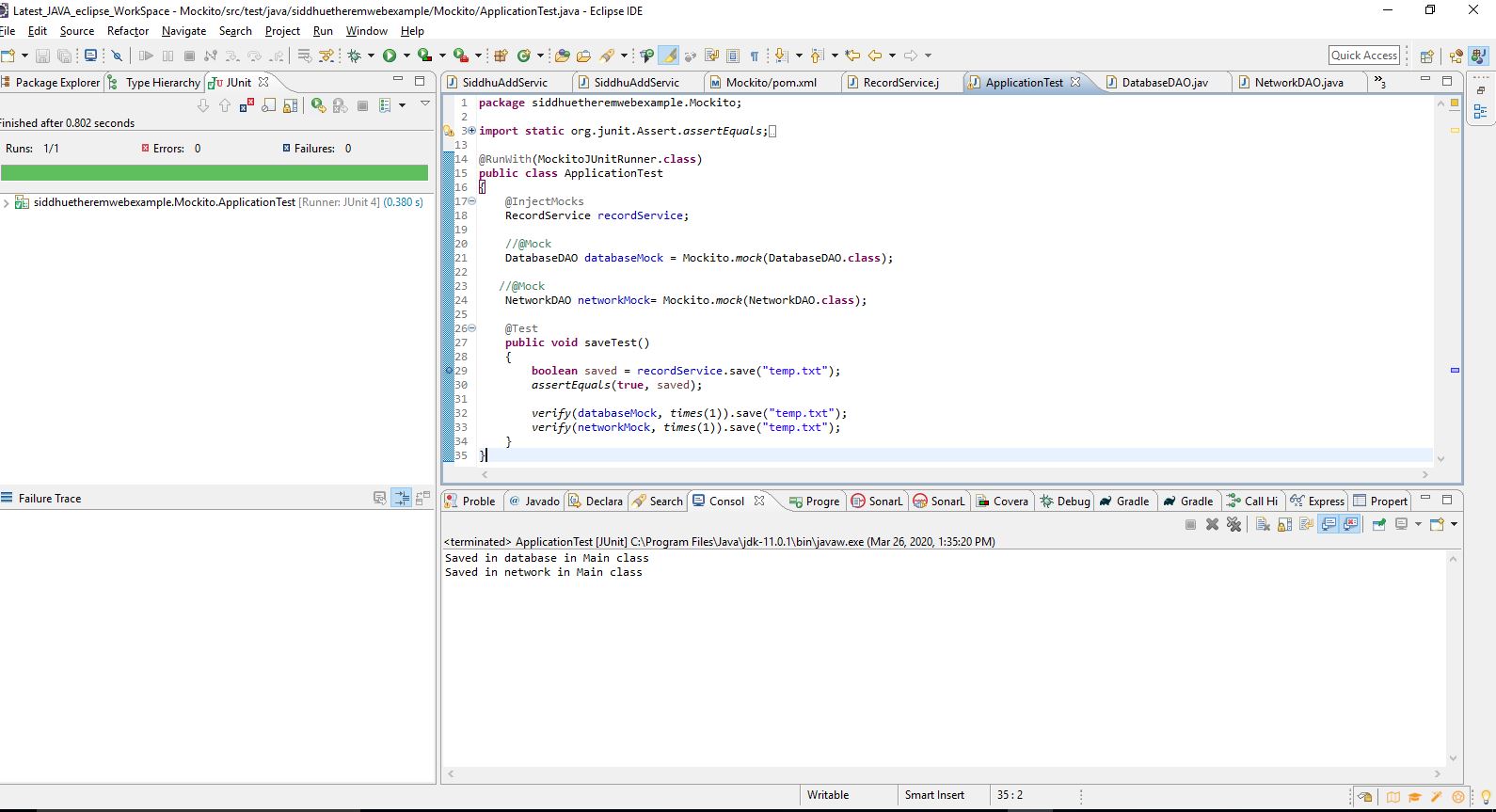
1- ApplicationTest
package siddhuetheremwebexample.Mockito;
import static org.junit.Assert.assertEquals;
import static org.mockito.Mockito.times;
import static org.mockito.Mockito.verify;
import org.junit.Test;
import org.junit.runner.RunWith;
import org.mockito.InjectMocks;
import org.mockito.Mock;
import org.mockito.Mockito;
import org.mockito.junit.MockitoJUnitRunner;
@RunWith(MockitoJUnitRunner.class)
public class ApplicationTest
{
@InjectMocks
RecordService recordService;
//@Mock
DatabaseDAO databaseMock = Mockito.mock(DatabaseDAO.class);
//@Mock
NetworkDAO networkMock= Mockito.mock(NetworkDAO.class);
@Test
public void saveTest()
{
boolean saved = recordService.save("temp.txt");
assertEquals(true, saved);
verify(databaseMock, times(1)).save("temp.txt");
verify(networkMock, times(1)).save("temp.txt");
}
}
2-RecordService
package siddhuetheremwebexample.Mockito;
public class RecordService
{
DatabaseDAO database;
NetworkDAO network;
//setters and getters
public boolean save(String fileName)
{
database.save(fileName);
System.out.println("Saved in database in Main class");
network.save(fileName);
System.out.println("Saved in network in Main class");
return true;
}
}
3-DatabaseDAO
package siddhuetheremwebexample.Mockito;
public class DatabaseDAO
{
public void save(String fileName) {
System.out.println("Saved in database");
}
}
4- NetworkDAO
package siddhuetheremwebexample.Mockito;
public class NetworkDAO
{
public void save(String fileName) {
System.out.println("Saved in network location");
}
}
Image1
Reference:-
Refer to https://javacodehouse.com/blog/mockito-tutorial/ for more example.

Tuesday, March 17, 2020

How to monitor or watch folder for file creation , deletion and update using java

In past for requirement where in whenever any file is created or updated or deleted if we want to perform some action we need to either go to JMS, RabbitMQ etc options. Other option was to have write our own event handling. But in JDK7 and above we get inbuilt NIO package that come with WatchService and WatchKey concept. Using WatchKey we register the service on folder which we want to watch for event like create/delete/modifyi.e.
Path faxFolder = Paths.get("C:\\Latest_JAVA_eclipse_WorkSpace\\ConvertValue\\src\\fax");
WatchService watchService = FileSystems.getDefault().newWatchService();
WatchKey key = faxFolder.register(watchService,
StandardWatchEventKinds.ENTRY_CREATE,
StandardWatchEventKinds.ENTRY_MODIFY,
StandardWatchEventKinds.ENTRY_DELETE);

code:-
import java.io.IOException;
import java.nio.file.FileSystems;
import java.nio.file.Path;
import java.nio.file.Paths;
import java.nio.file.StandardWatchEventKinds;
import java.nio.file.WatchEvent;
import java.nio.file.WatchKey;
import java.nio.file.WatchService;
public class SiddhuDirchange {
public static void main(String[] args) throws Exception {
Path faxFolder = Paths.get("C:\\Latest_JAVA_eclipse_WorkSpace\\ConvertValue\\src\\fax");
WatchService watchService = FileSystems.getDefault().newWatchService();
WatchKey key = faxFolder.register(watchService,
StandardWatchEventKinds.ENTRY_CREATE,
StandardWatchEventKinds.ENTRY_MODIFY,
StandardWatchEventKinds.ENTRY_DELETE);
boolean valid = true;

do {

for (WatchEvent event : key.pollEvents()) {
WatchEvent.Kind kind = event.kind();
if (StandardWatchEventKinds.ENTRY_CREATE.equals(event.kind())) {
System.out.println("File Created:");
key.reset();
}
if (StandardWatchEventKinds.ENTRY_DELETE.equals(event.kind())) {
System.out.println("File delete:");
key.reset();
}
if (StandardWatchEventKinds.ENTRY_MODIFY.equals(event.kind())) {
System.out.println("File modifies:");
key.reset();
}

}
//Dont forget to reset the key.
valid = key.reset();
} while (valid);
}
}
Note: to get the file name you can use
String fileName = event.context().toString();
System.out.println("File Name for create/update/delete:" + fileName);

Thursday, February 27, 2020

Creating simple Docker File / Docker image and Docker container to execute hello world

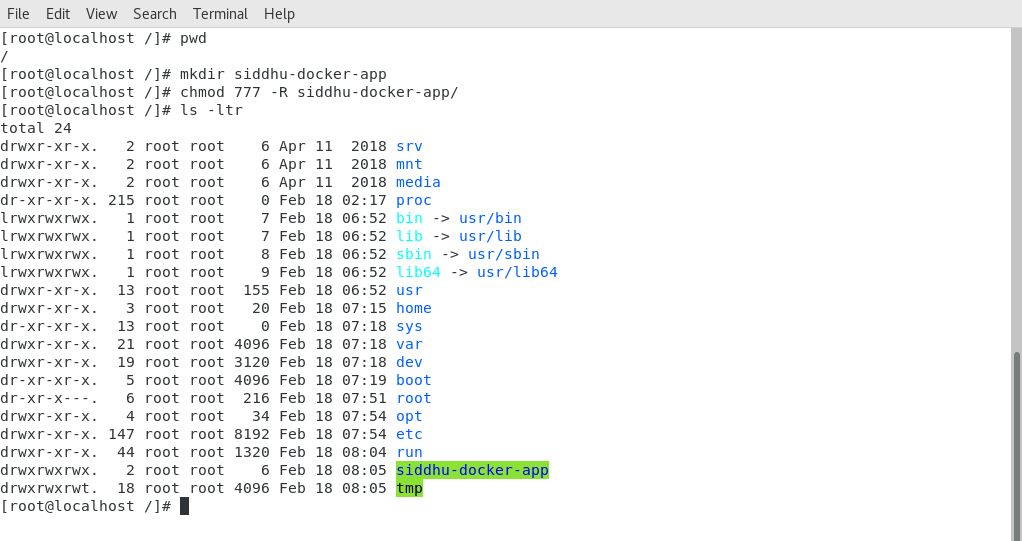
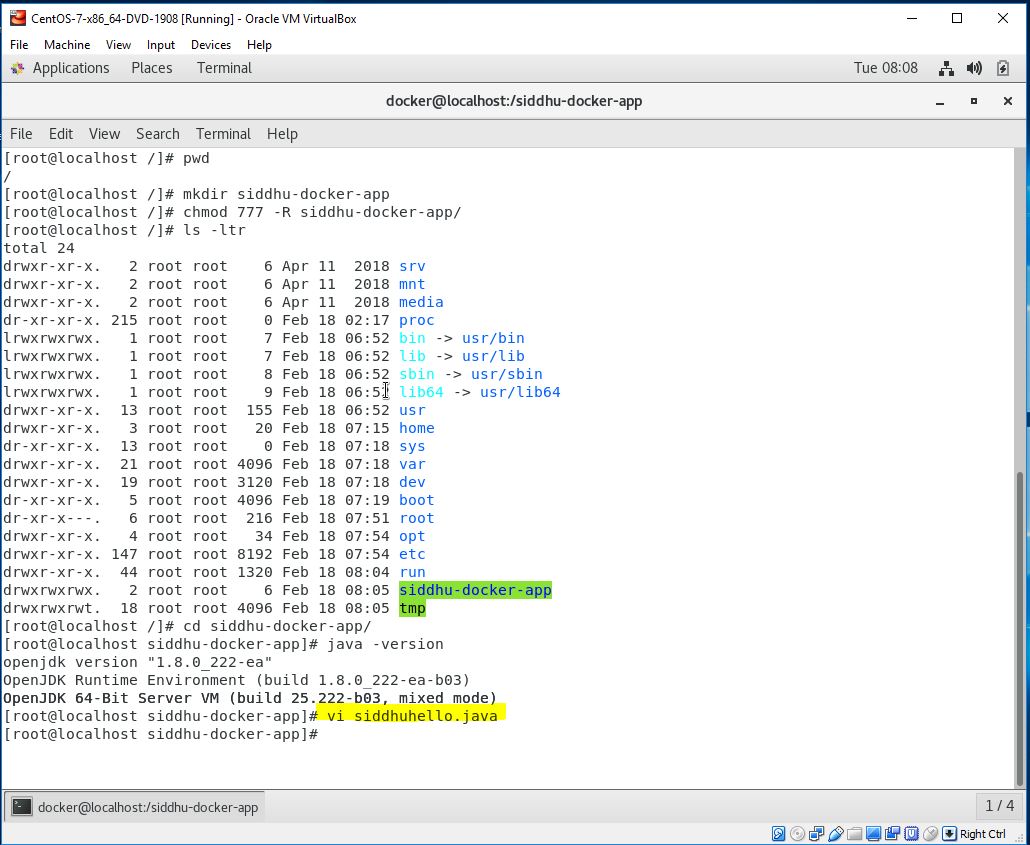
1- Create folder
mkdir siddhu-docker-app
2- Provide all rights to this folder
chmod 77 -R siddhu-docker-app
Image1
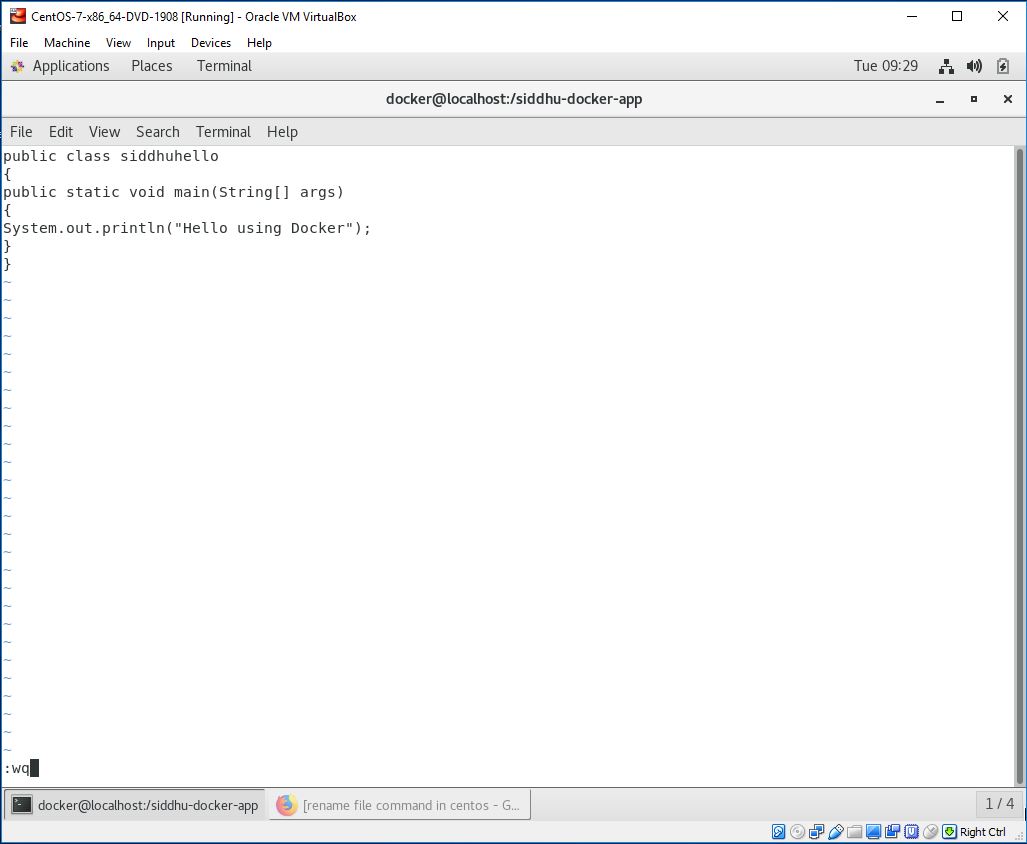
3- Create simple helloworld java programe
class sidduhello{
public static void main(String[] args){
System.out.println("Hello from using Docker");
}
}
Save it inside the directory siddhu-docker-app as sidduhello.java.
Image2Image3
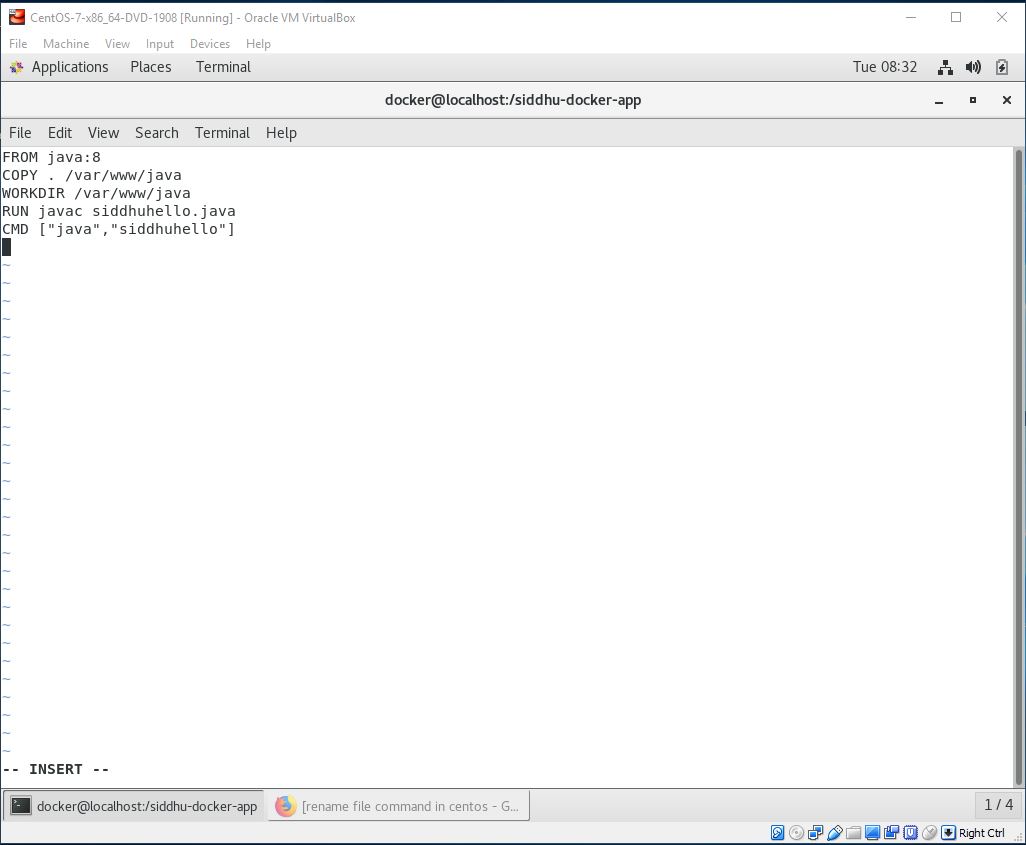
4- Lets Create a Dockerfile with name as "Dockerfile"
Dockerfile contains instructions for the Docker. It did not have any file extension.
// Start of Dockerfile text
FROM java:8
COPY . /var/www/java
WORKDIR /var/www/java
RUN javac sidduhello.java
CMD ["java", "sidduhello"]
// End of Dockerfile text
Note:- Write all instructions in uppercase because it is convention.
Image4
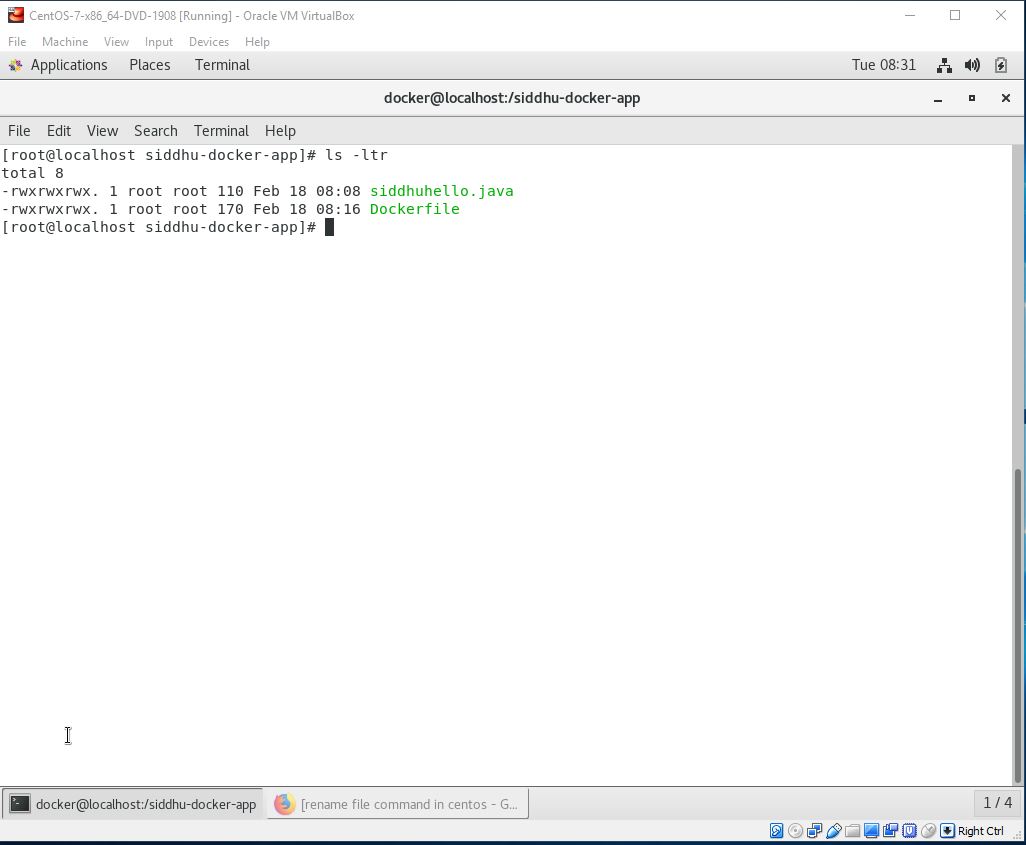
Now make sure to have our both files i.e. Dockerfile and sidduhello.java in out siddhu-docker-app directory.

5- Lest Build Docker Image
After creating the docker Files we need to create the docker images.Docker image contains all the code+lib+class+packages etc that is required to be executed in docker containers.
Now change the working directory i.e. move inside our siddhu-docker-app folder
Give chmod 777 to both these file as shown below
Image5
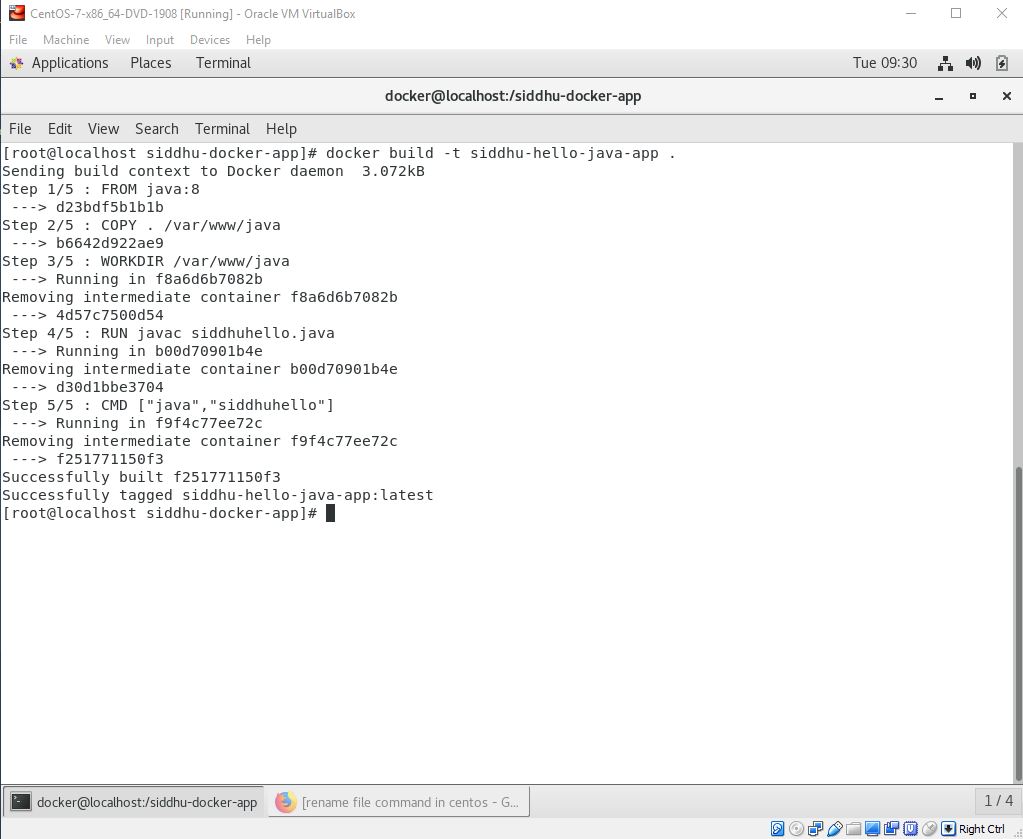
Execute below command
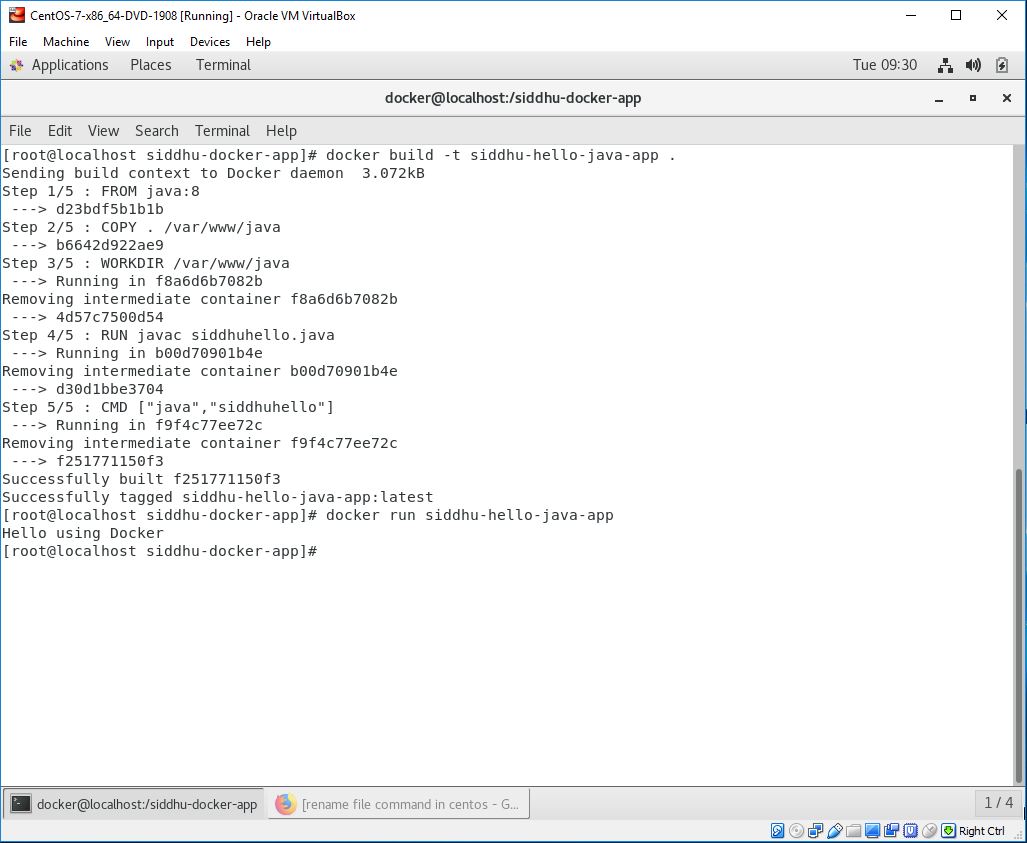
docker build -t siddhu-hello-java-app .

Descriptions:-
docker:- this command tell installed docker progrmae to take some action
build :- This command is used to create the Images
siddhu-hello-java-app :- This is the name of the images and its upto you what name you want to give.
. :- final dots say that docker files which need to be used to create image is located in the current directory
Image6
After successfully building the image. Now, we can run our docker image.
6- Now lets Run Docker Image
Once the docker image is build this can be taken as the core file to build docker container.
docker run siddhu-hello-java-app
Image7
In general practise Docker Images are huge in size so Devops engineer chose the option to download the docker files from Docker hub/Git hub using Jenkin and then using installed docker on the respective machine build docker files from it. And as on when required we execute this file using run command to create Docker container

There are many commands in Docker but most of the time you will be working on following commands

1- Start
2- Stop
3- Pull
4- Push
5- PS
6- PS all
7- log
8- exec -it
9- rm
10- rmi
11- image